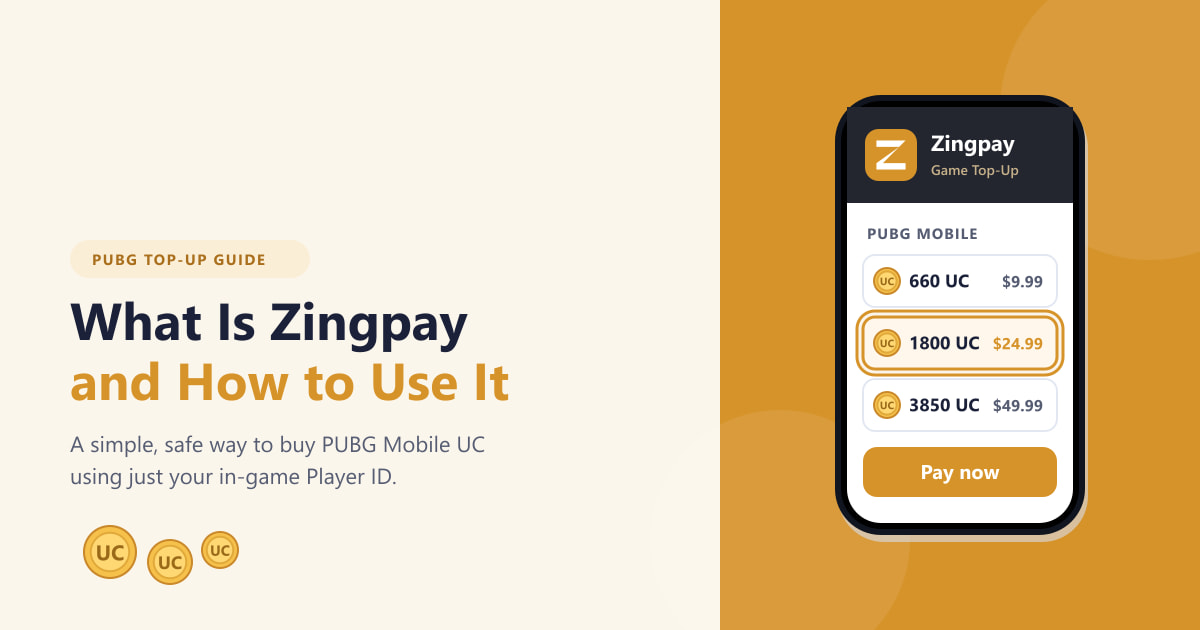
Zingpay is a third-party online top-up store that lets you buy PUBG Mobile UC (Unknown Cash) and other game credit, usually with just your in-game Player ID. Instead of paying inside the game's store, you pick a UC package on Zingpay, enter your ID, and pay with a card, e-wallet, or bank transfer. This guide explains what Zingpay is, why people use it, and exactly how to top up your PUBG account step by step.
What you need before you start
Topping up through Zingpay is quick, but a little prep makes it smoother. Before you begin, have the following ready:
- A Zingpay account (free to create with an email or social login).
- Your exact PUBG Mobile Player ID — the long number under your in-game name.
- A working payment method, such as a credit or debit card, an e-wallet, or a bank transfer option supported in your region.
A few important notes first. Zingpay is an independent merchant and is not operated by Krafton, the maker of PUBG. The UC and currency amounts that follow are examples only — real package names, prices, bonus UC, and supported payment methods change by region and current promotions. Always confirm the live details on Zingpay's own checkout page before you pay, and only enter your Player ID, never your account password.
How to use Zingpay in PUBG
-
Step 1: Understand what Zingpay is
Zingpay sits between you and your PUBG account. You choose a UC package and pay Zingpay; Zingpay then credits the UC to your game using the Player ID you provide. Because it never asks for your game login, it is a fairly low-risk way to top up — the only sensitive thing you share is a public ID number. Many players use stores like this because they can offer discounts or bonus credit compared with buying directly in the in-game store.
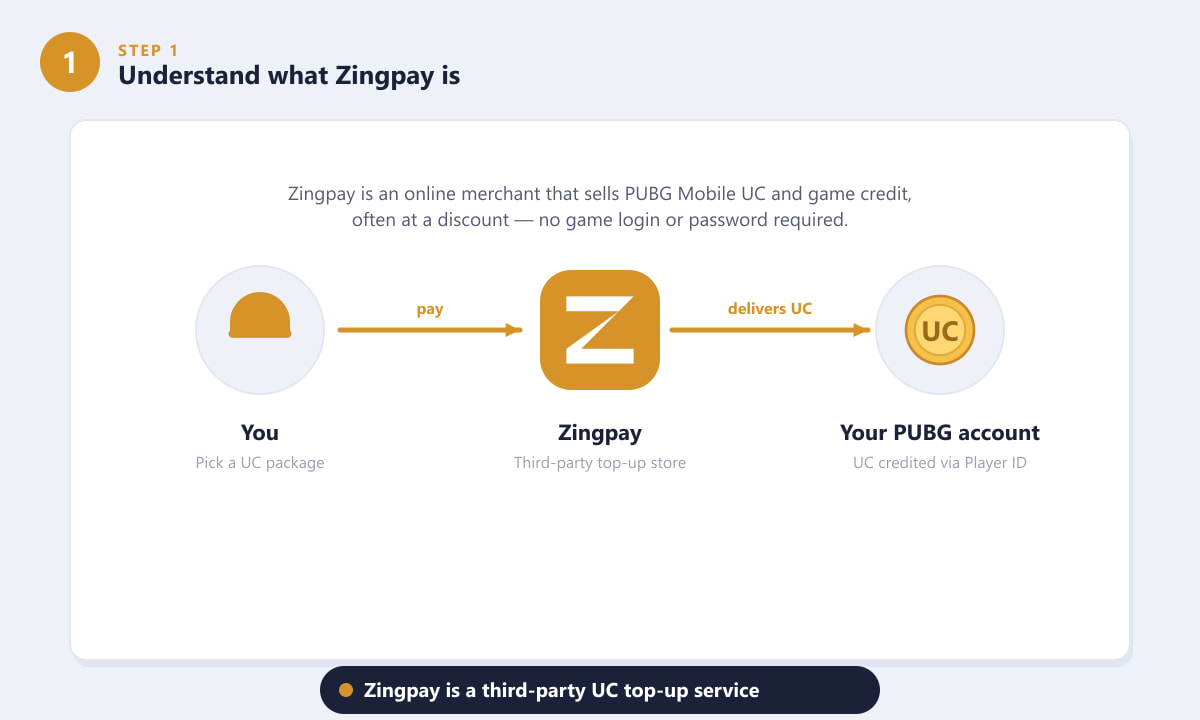
You pay Zingpay, and Zingpay delivers the UC to your PUBG account via your Player ID. -
Step 2: Create or sign in to your Zingpay account
Open the Zingpay website (or app) and either register or sign in. Creating an account usually takes under a minute with an email address or a social login. Having an account means your top-up history, receipts, and any saved payment details stay in one place, which makes future purchases faster and easier to track if you ever need support.
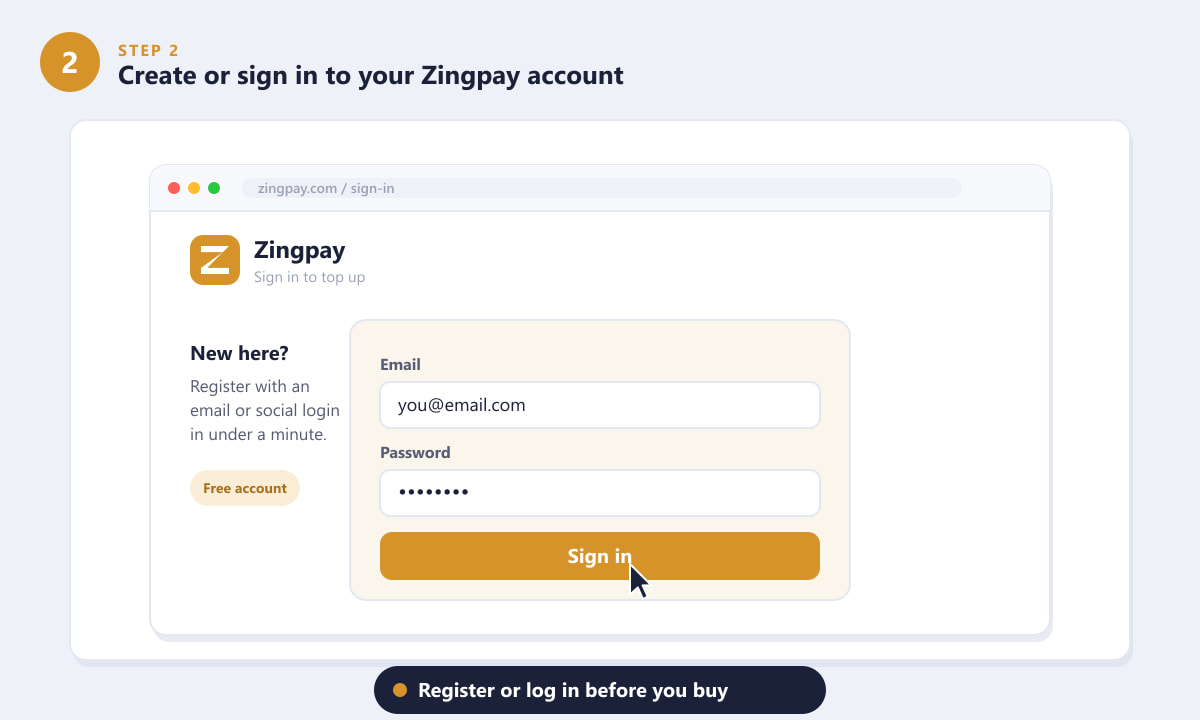
Register or log in to Zingpay before choosing a package. -
Step 3: Find your PUBG Mobile Player ID
Open PUBG Mobile and go to your profile. Your Player ID is the long number shown beneath your in-game name (it is also called your Character ID). Copy it carefully — this is the number Zingpay uses to send the UC to the right account. A single wrong digit can deliver your purchase to a stranger, so double-check every number before you continue.
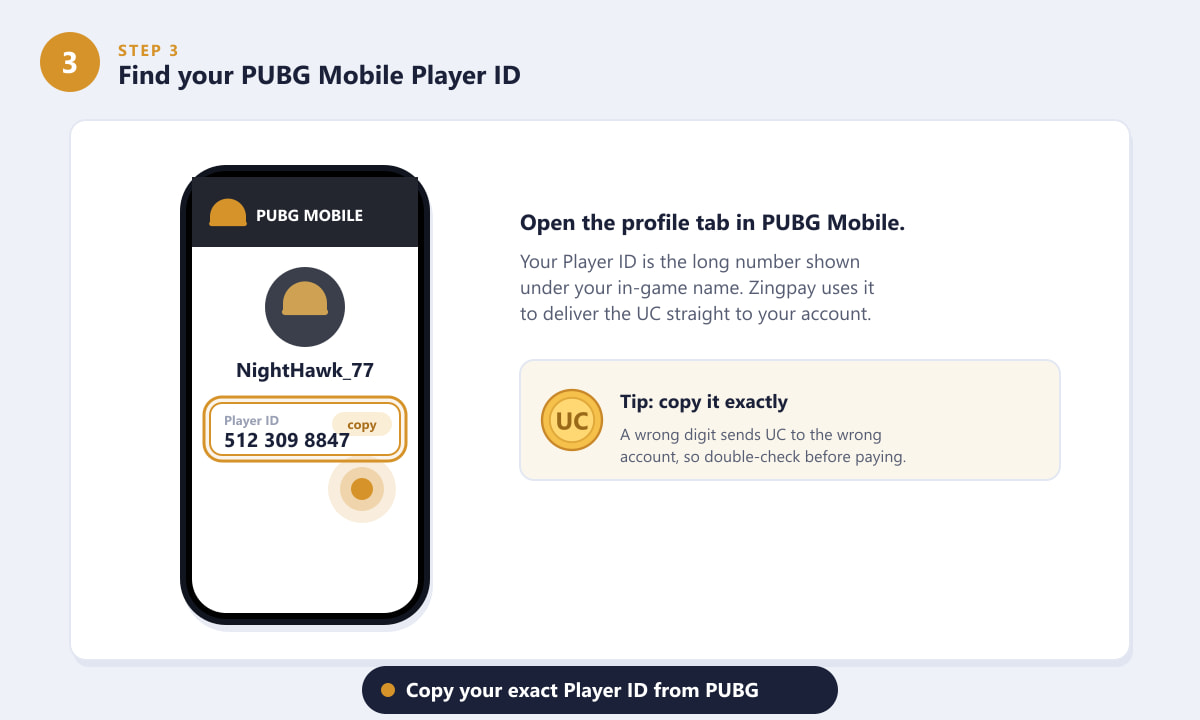
Copy your exact Player ID from your PUBG Mobile profile. -
Step 4: Choose your UC package and enter the ID
Back on Zingpay, select PUBG Mobile, paste in your Player ID, and pick the UC amount you want. Packages typically scale from small starter amounts up to large bundles, and bigger packs often include bonus UC. Take a moment to compare the price against the in-game store; if Zingpay is offering a discount or extra UC, this is where you will see the value.
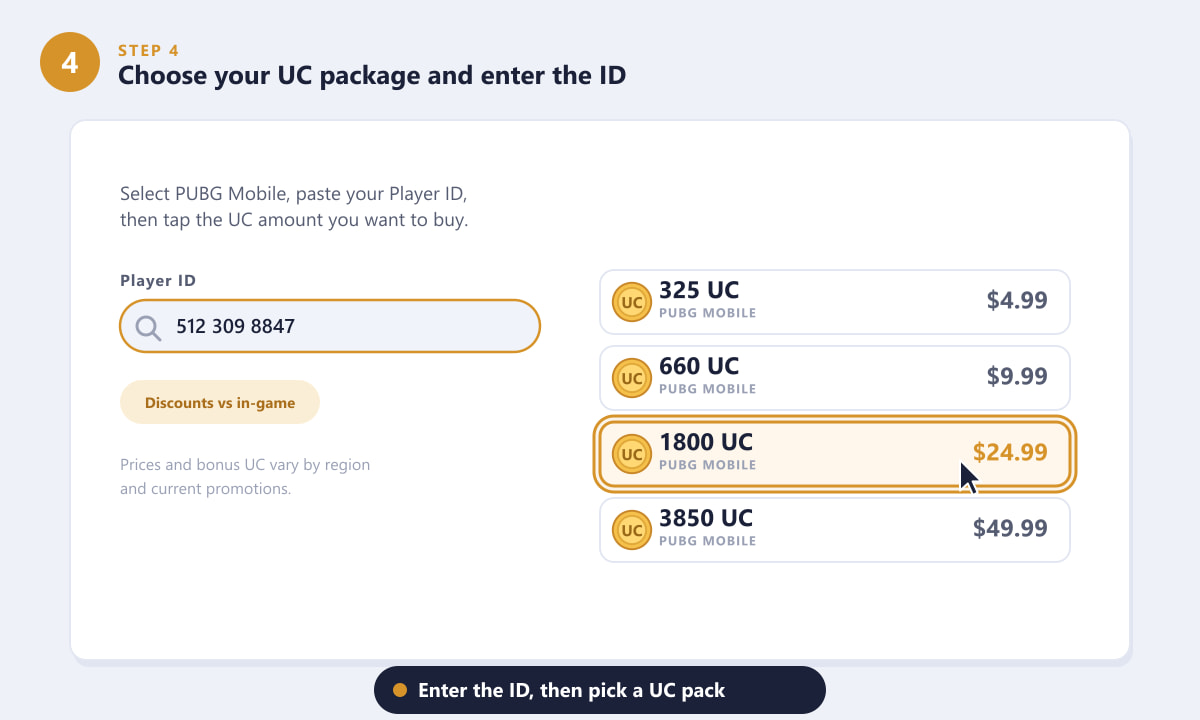
Enter your Player ID, then tap the UC package you want to buy. -
Step 5: Pay securely and confirm in PUBG
Choose a payment method, review the order summary (game, Player ID, UC amount, and total), then complete the payment. Delivery is usually fast, often within minutes. Once it is done, open PUBG Mobile and check your UC balance or in-game inbox to confirm the UC arrived. Keep the receipt or transaction reference in case you ever need to contact support.
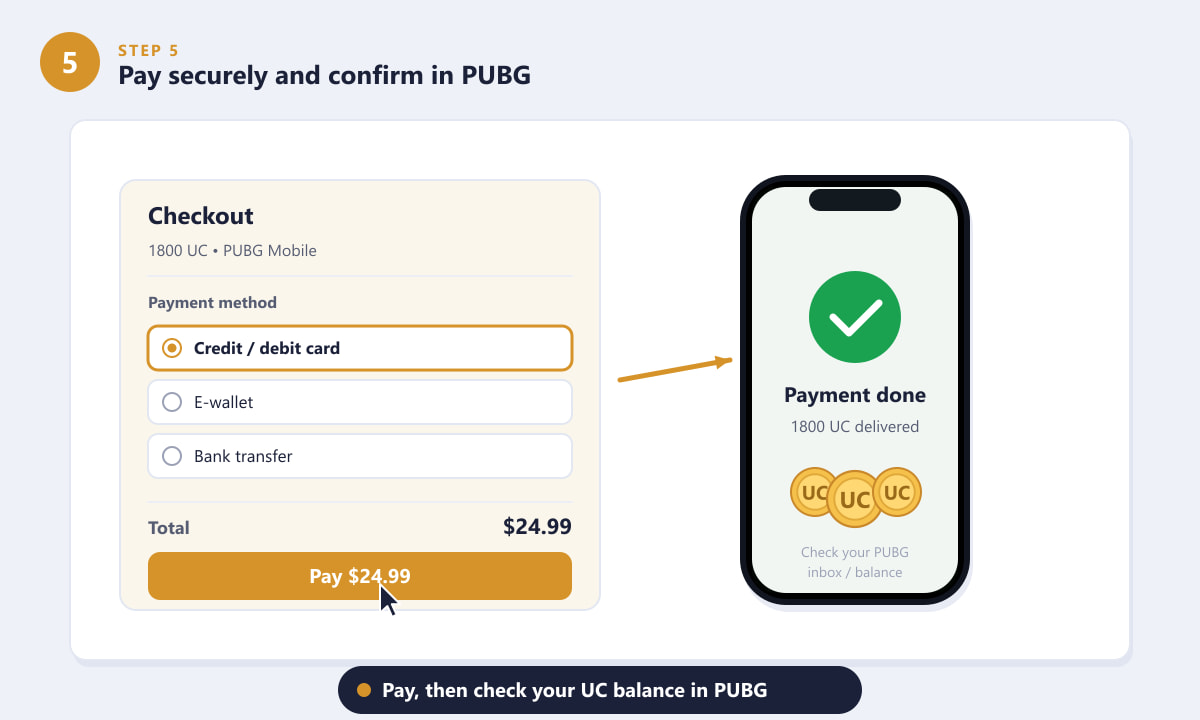
Pay securely, then verify your new UC balance inside PUBG.
Tips for a safe top-up
- Verify the website. Make sure you are on the genuine Zingpay site before entering any details, and avoid links from random messages or ads.
- Never share your password. A legitimate UC top-up only needs your Player ID — not your game login, OTP, or recovery codes.
- Double-check the ID. Re-read every digit. UC sent to the wrong Player ID usually cannot be recovered.
- Compare value. Check whether the package, with any bonus UC, actually beats the in-game price for your region before buying.
- Save your receipt. Keep the order confirmation so support can find your transaction quickly if anything goes wrong.
Troubleshooting
My UC hasn't arrived
Most orders deliver within a few minutes, but they can occasionally take longer during busy periods. Fully close and reopen PUBG Mobile, then check your UC balance and in-game inbox. If it still has not arrived after a reasonable wait, contact Zingpay support with your order number.
I entered the wrong Player ID
If the order is still processing, reach out to support immediately — they may be able to stop or correct it. Once UC has been delivered to a valid ID, it generally cannot be reversed, which is why checking the number first matters so much.
My payment failed
Try a different payment method, confirm your card or wallet has sufficient funds, and make sure the option is supported in your country. If money was deducted but no order was created, keep the bank reference and contact support.
Frequently asked questions
What is Zingpay used for in PUBG?
It is a third-party store used to buy PUBG Mobile UC and game credit. You select a package, enter your Player ID, and pay, and the UC is delivered to your account.
Is Zingpay safe to use for PUBG top-ups?
Topping up only requires your public Player ID, not your password, which keeps risk low. As with any third-party service, use the official site, pay through trusted methods, and keep your receipt.
Do I need my PUBG password to use Zingpay?
No. A standard UC top-up needs only your Player ID. If a site ever asks for your game password or login codes, treat it as a warning sign and stop.
How long does Zingpay take to deliver UC?
Delivery is usually quick — often within minutes — though it can occasionally take longer at peak times. Restart the game and check your inbox if it has not appeared yet.
Can I get my money back if I make a mistake?
If the order is still processing, contact support right away. Once UC has been delivered to a valid Player ID, refunds or reversals are typically not possible.
Final thoughts
Zingpay makes buying PUBG Mobile UC simple: create an account, copy your Player ID, choose a package, and pay. The whole process takes just a few minutes, and because it relies on your public ID rather than your login, it is a convenient way to top up — sometimes at a better price than the in-game store. Just remember to verify the site, double-check your ID, and confirm the live package details before you pay. For the official game itself, you can always visit the PUBG Mobile website.