Valorant won't open for a surprising number of players, and the fix is rarely obvious — the game disappears silently, throws a cryptic error, or crashes before the loading screen even appears. Most launch failures trace back to one of three culprits: the Riot Vanguard anti-cheat service not running, corrupted game files, or a background app that conflicts with Vanguard's kernel-level driver. Work through the steps below in order and you should be back in the queue within minutes.
Before you start, make sure Windows is up to date and that you have a stable internet connection — Riot Client checks for updates every time you launch. If Valorant was working before and suddenly stopped, a recent Windows update or a newly installed background app is the likely trigger.
What you need
- A Windows 10 (64-bit) or Windows 11 PC — Valorant does not support 32-bit systems or macOS natively
- Administrator access to your Windows account
- The Riot Client already installed (if not, download it from playvalorant.com)
How to fix Valorant not opening
-
Step 1: Run Riot Client as Administrator
Riot Vanguard is a kernel-level anti-cheat driver that requires elevated system privileges to start. If Riot Client is launched without administrator rights, Vanguard cannot load and Valorant will silently fail. Right-click the Riot Client shortcut on your desktop or taskbar, choose Run as administrator, then click Yes on the UAC prompt. Try launching Valorant from inside the client. This single step resolves the issue for many players after a Windows update resets app permissions.
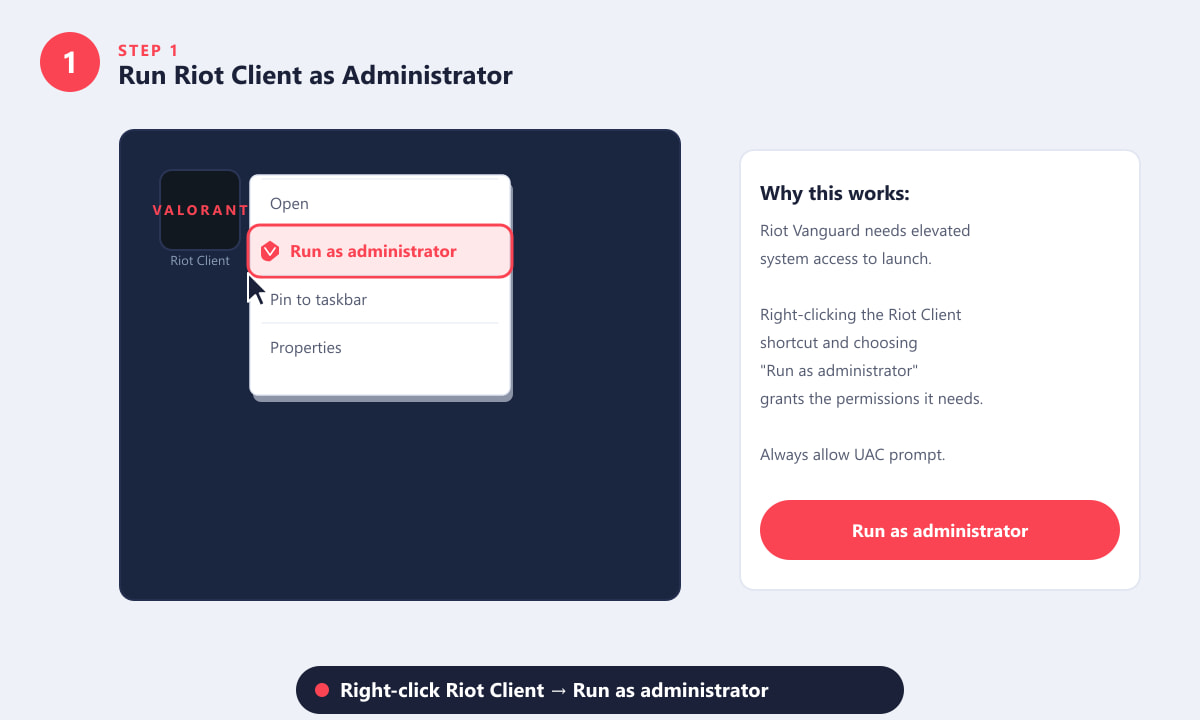
Right-click the Riot Client → Run as administrator — Vanguard needs elevated privileges to start. -
Step 2: Restart the Vanguard Anti-Cheat Service
Valorant's Riot Vanguard anti-cheat runs as two Windows services — vgc and vgk. If either stops unexpectedly (after a PC sleep, a Windows update, or a crash), Valorant refuses to launch. Open the Windows Services panel by pressing Win + R, typing
services.msc, and pressing Enter. Scroll down to vgc, right-click it, and select Restart. Do the same for vgk. If Restart is greyed out, choose Start instead. Once both services show a Running status, relaunch Valorant.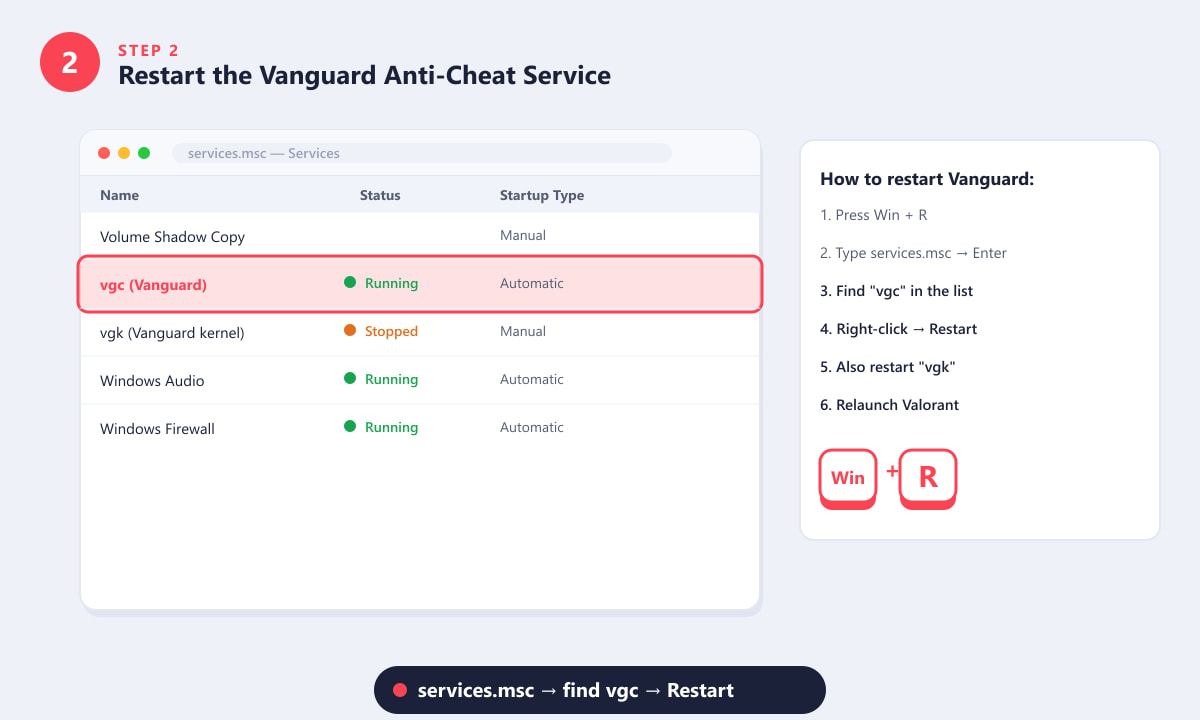
Open services.msc, find the vgc and vgk entries, and restart both to get Vanguard running again. -
Step 3: Verify (Repair) Game Files via Riot Client
Corrupted or incomplete files are a frequent silent cause of launch failures — Valorant will simply not open rather than tell you which file is broken. Riot Client has a built-in repair function that rescans every game file and re-downloads anything wrong. Open Riot Client, find the Valorant game card, click the gear (settings) icon next to the Play button, and choose Repair. The scan takes 5–15 minutes depending on your drive speed. Your account settings and keybinds are not affected.
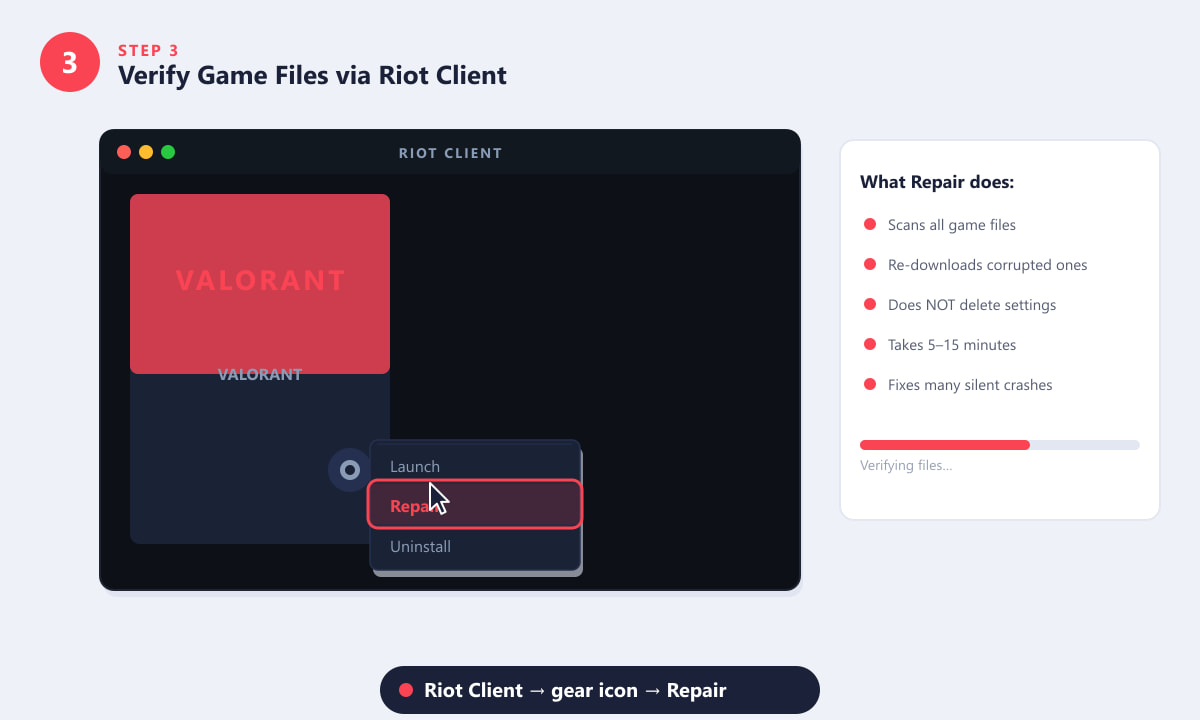
Click the gear icon on the Valorant card in Riot Client, then select Repair to re-verify all game files. -
Step 4: Close Conflicting Background Apps
Riot Vanguard's kernel driver is strict about what other software can run alongside it. Certain tools — particularly hardware monitoring software, overlays, and third-party anti-malware — can prevent Vanguard from initializing. Press Ctrl + Shift + Esc to open Task Manager, go to the Processes tab, and end any of the following before launching Valorant: Discord (overlay), MSI Afterburner / RivaTuner, standalone antivirus scanners such as Malwarebytes, VPN clients, and RGB lighting software (iCUE, Armory Crate, Synapse). You can re-enable them after the game is running.
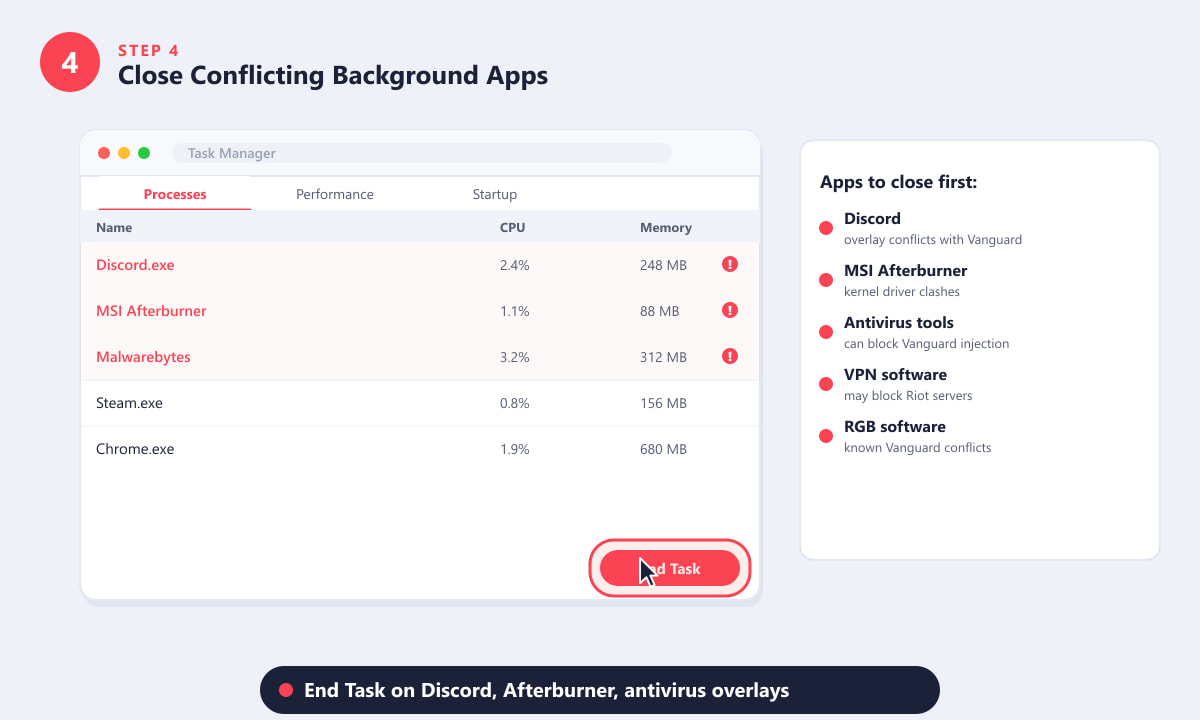
Use Task Manager to end Discord, MSI Afterburner, Malwarebytes, and VPN clients before launching Valorant. -
Step 5: Update Your GPU Drivers and DirectX
Outdated GPU drivers or a missing DirectX component can cause Valorant to crash during initialization with no visible error. Open Device Manager (right-click the Start button → Device Manager), expand Display adapters, right-click your GPU, and choose Update driver → Search automatically. Alternatively, use your manufacturer's dedicated tool: GeForce Experience for NVIDIA, Radeon Software for AMD, or Intel Arc Control for Intel graphics. To check your DirectX version, press Win + R, type
dxdiag, and press Enter — Valorant requires DirectX 11.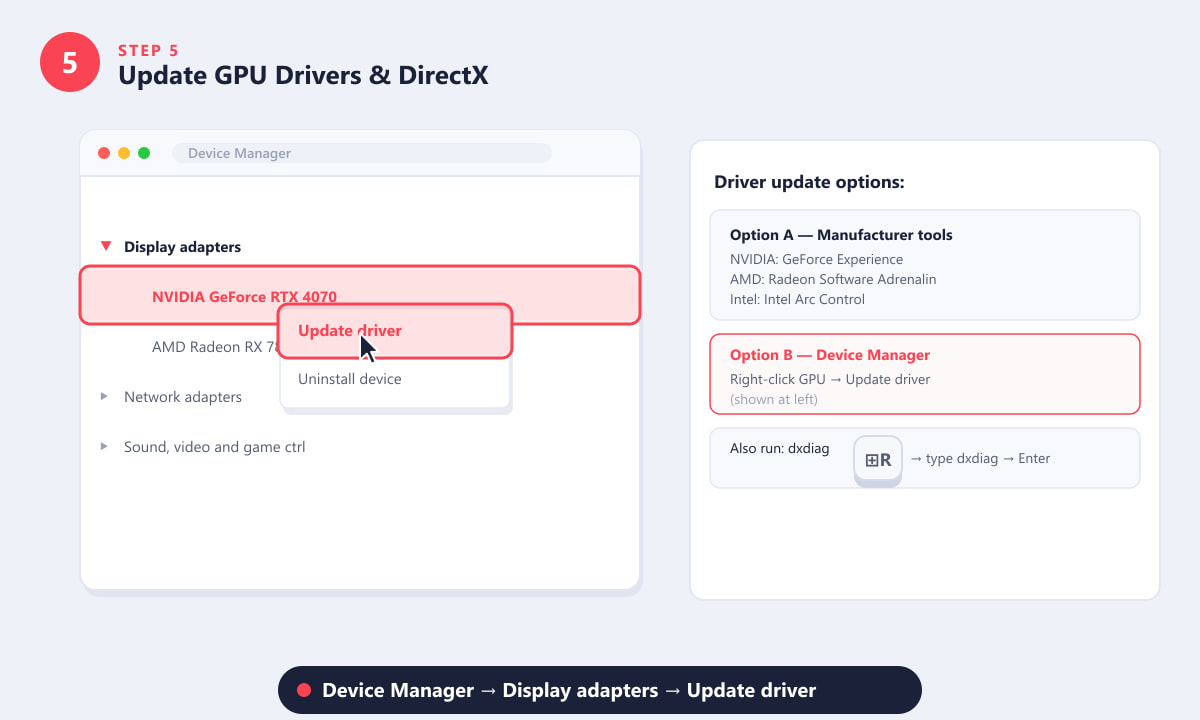
Right-click your GPU in Device Manager and choose Update driver, or use GeForce Experience / Radeon Software. -
Step 6: Reinstall Valorant (Last Resort)
If none of the above steps work, a clean reinstall removes any deeply corrupted files or driver remnants that the repair tool can't fix. The order matters — uninstall Riot Vanguard first, then uninstall Valorant, both through Settings → Apps. After uninstalling, delete the
C:\Riot Gamesfolder if it still exists. Restart your PC before reinstalling to ensure Vanguard's kernel driver is fully cleared. Then download and run the Riot Client installer fresh from playvalorant.com. The reinstall will also put the latest Vanguard build in place, which often fixes issues caused by a partial update.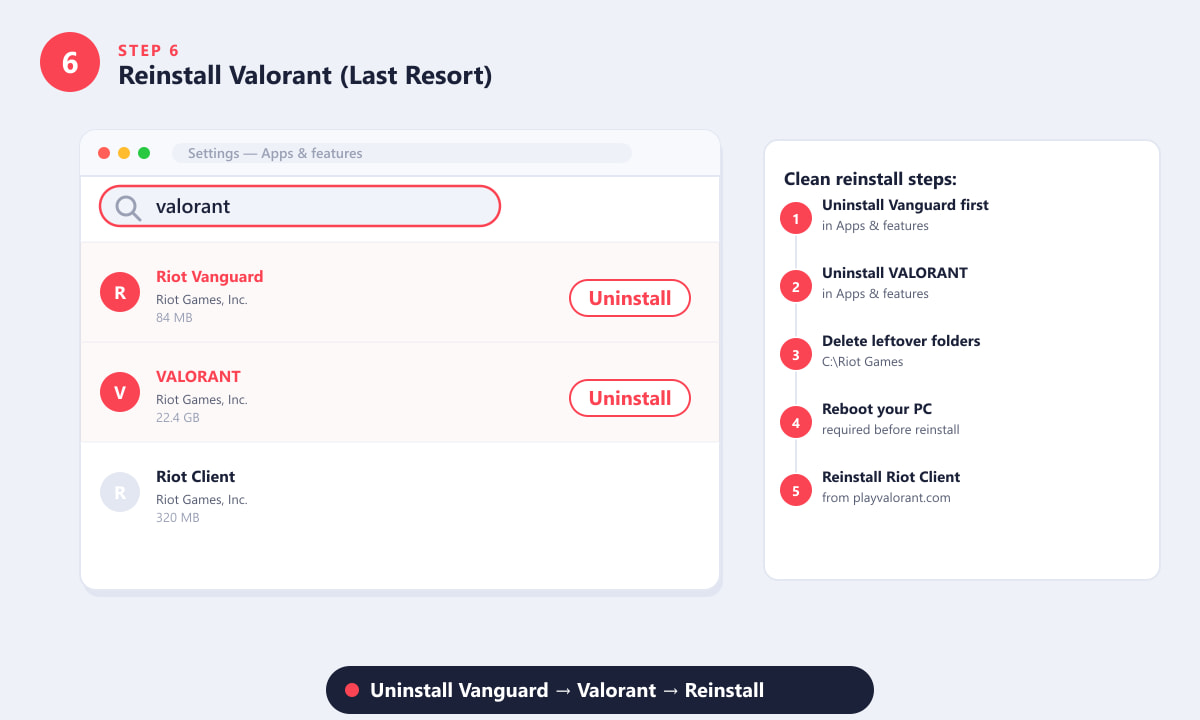
Uninstall Riot Vanguard before Valorant, reboot, then reinstall via Riot Client for a truly clean slate.
Tips to prevent future launch failures
- Set Riot Client to always run as administrator. Right-click the shortcut → Properties → Compatibility → tick "Run this program as an administrator" → Apply.
- Keep Windows Update current. Vanguard is updated alongside Windows kernel signatures, so a major Windows version gap can cause incompatibilities.
- Don't use hibernate. Vanguard can fail to resume cleanly after a hibernation cycle. A full reboot before gaming is safer.
- Add exceptions in your antivirus. If you need antivirus software running, add the entire
C:\Riot Gamesfolder and the Vanguard service (vgc.exe,vgk.sys) as exclusions.
Troubleshooting specific error messages
VALORANT has encountered a connection error. Please relaunch the client
This usually means Vanguard is running but your connection to Riot's authentication servers failed. Check your internet connection, disable your VPN if active, and flush DNS with ipconfig /flushdns in an administrator Command Prompt. Then relaunch Riot Client.
Anti-cheat software is currently running / VAN 9001
VAN 9001 means Vanguard detected another kernel-level driver it considers incompatible. The fix is to identify and uninstall the conflicting program — common culprits include older gaming mice software and network traffic analyzers. Check the Valorant support site for a current list of known conflicting drivers.
Valorant opens briefly then instantly closes
This almost always points to a corrupted game file or a GPU driver crash. Run the Repair function from Riot Client (Step 3) and update your GPU driver (Step 5). If it still closes instantly, check the Windows Event Viewer for application error entries immediately after the crash.
Frequently asked questions
Why does Valorant not open even though Riot Client is running?
Riot Client running does not guarantee Vanguard is active. Vanguard must start first before Valorant can launch. Open services.msc and confirm the vgc service shows a Running status. If it doesn't, start it manually, then try launching Valorant again.
Can I play Valorant without Vanguard installed?
No. Riot Vanguard is a mandatory component of Valorant and cannot be disabled or bypassed. If Vanguard is removed or broken, Valorant will refuse to open.
Does reinstalling Valorant delete my skins and settings?
No. Your cosmetics, rank, and game history are tied to your Riot account and stored on Riot's servers. Reinstalling only removes local files. However, your in-game keybinds and video settings are stored locally, so note them down before reinstalling if you have custom settings.
Will running Riot Client as administrator every time keep me safe?
Yes, this is Riot's own recommendation for Windows users. Riot Client and Vanguard are official Riot software; granting them administrator access is expected and poses no additional security risk beyond what is already required to run Valorant.
Valorant worked yesterday — why won't it open today?
A Windows Update, a newly installed program, or a background app that started after your last gaming session is the most likely cause. Check Task Manager for new software running at startup, make sure Vanguard services are running, and try Step 1 (run as admin) first.
Getting back into the game
The vast majority of cases where Valorant won't open are solved by one of the first three steps: running Riot Client as administrator, restarting the Vanguard services, or using the built-in Repair function. Save the reinstall for last — it takes the longest and is rarely necessary. If you've worked through all six steps and Valorant still won't launch, the official Riot Support site can match your specific error code to a targeted fix.