Fixing packet loss in Valorant is the fastest way to stop rubber-banding, ghost bullets, and teleporting enemies. Packet loss happens when data packets traveling between your PC and Riot's game servers never arrive — or arrive too late to count. Even a sustained 2–3% rate will visibly break hit registration and agent movement. This guide walks through six proven fixes in order from easiest to most advanced.
Before you change anything, confirm you actually have packet loss and not just high ping — the causes and fixes are different. The steps below start with how to measure it, then address the most common culprits one by one.
What you need
- Valorant installed and running (any map or the firing range)
- Access to your router or modem
- An Ethernet cable if you are currently on Wi-Fi
- Admin rights on Windows to run network commands (Step 6)
How to fix packet loss in Valorant
-
Step 1: Enable the Network Debug Stats overlay
You need a live readout of packet loss before you can tell whether a fix actually worked. Open Settings > Video in the Valorant main menu, scroll to the Stats section, and set Network Debug Stats to Show. Alternatively, press Shift + F3 at any time while in a match to toggle the overlay on and off. Look at the PacketLoss row — anything above 1–2% sustained is the problem. The overlay also shows your ping and frame rate so you can rule out a CPU/GPU bottleneck.
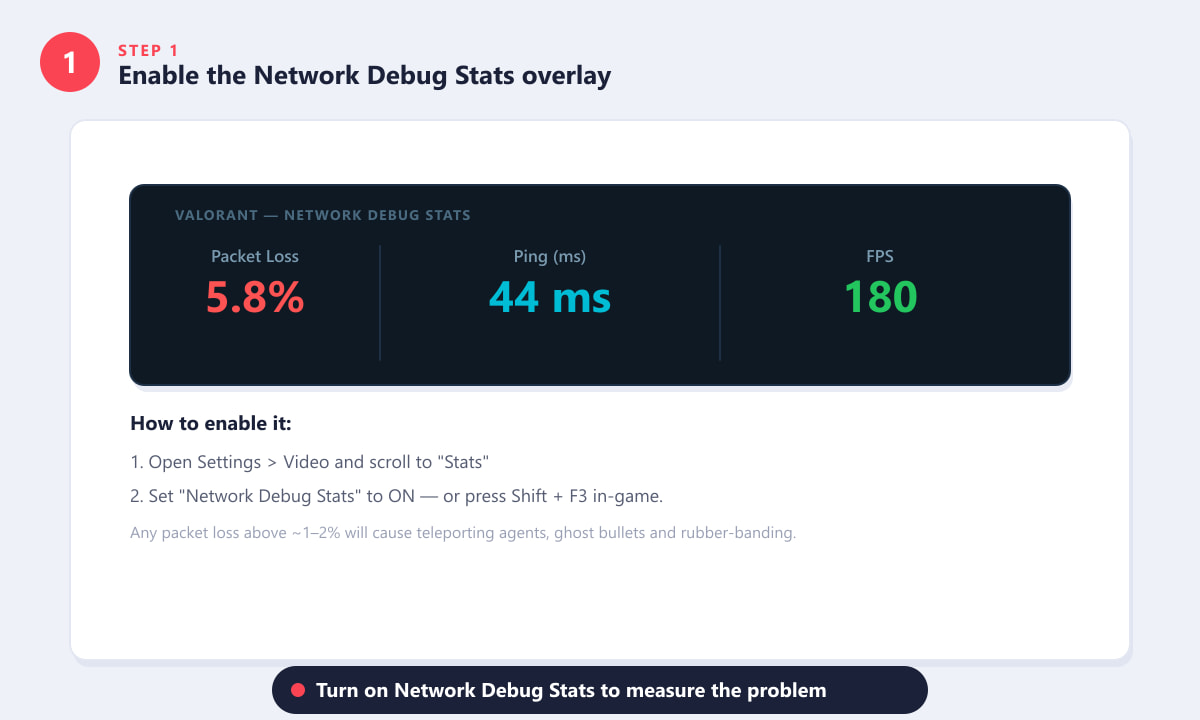
Enable Network Debug Stats via Settings > Video > Stats, or press Shift + F3 in-game. -
Step 2: Switch from Wi-Fi to a wired Ethernet connection
Wireless interference is the single biggest cause of packet loss in Valorant. Wi-Fi signals compete with neighboring networks, microwaves, cordless phones, and Bluetooth devices — all of which can randomly drop packets. Plug a LAN cable directly from your router to your PC or console and retest with the Network Debug Stats overlay. Most players who make this switch see packet loss drop to zero immediately. If you cannot run a cable permanently, a powerline adapter or MoCA adapter is the next best option.
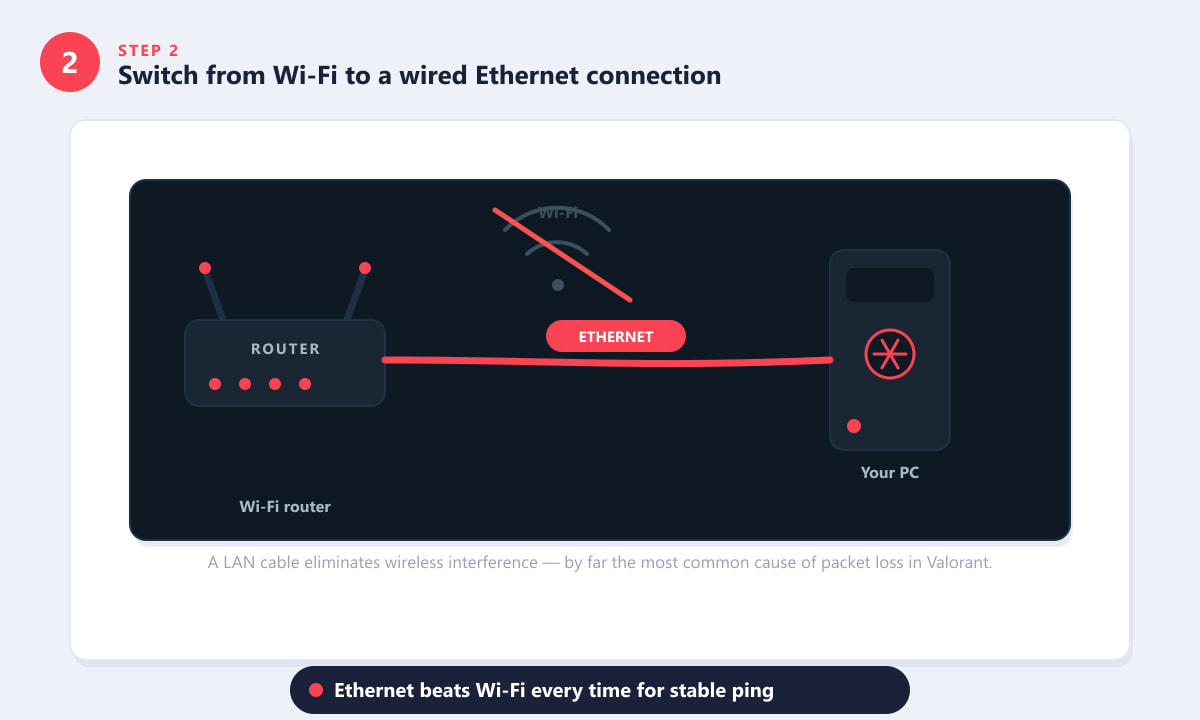
A wired Ethernet connection removes wireless interference that causes dropped packets. -
Step 3: Close bandwidth-hogging background apps
A game update downloading in the background, a 4K stream on another device, or cloud-sync software can saturate your upload or download pipe and force the router to drop Valorant's game packets. Before queuing up, pause all active downloads, close video streaming apps, and temporarily disable OneDrive, Dropbox, and Google Drive sync. On Windows, open Task Manager > Performance > Open Resource Monitor > Network to see exactly which processes are using your connection. If your router supports QoS (Quality of Service), set your game PC as the highest-priority device so Valorant traffic always gets through first.
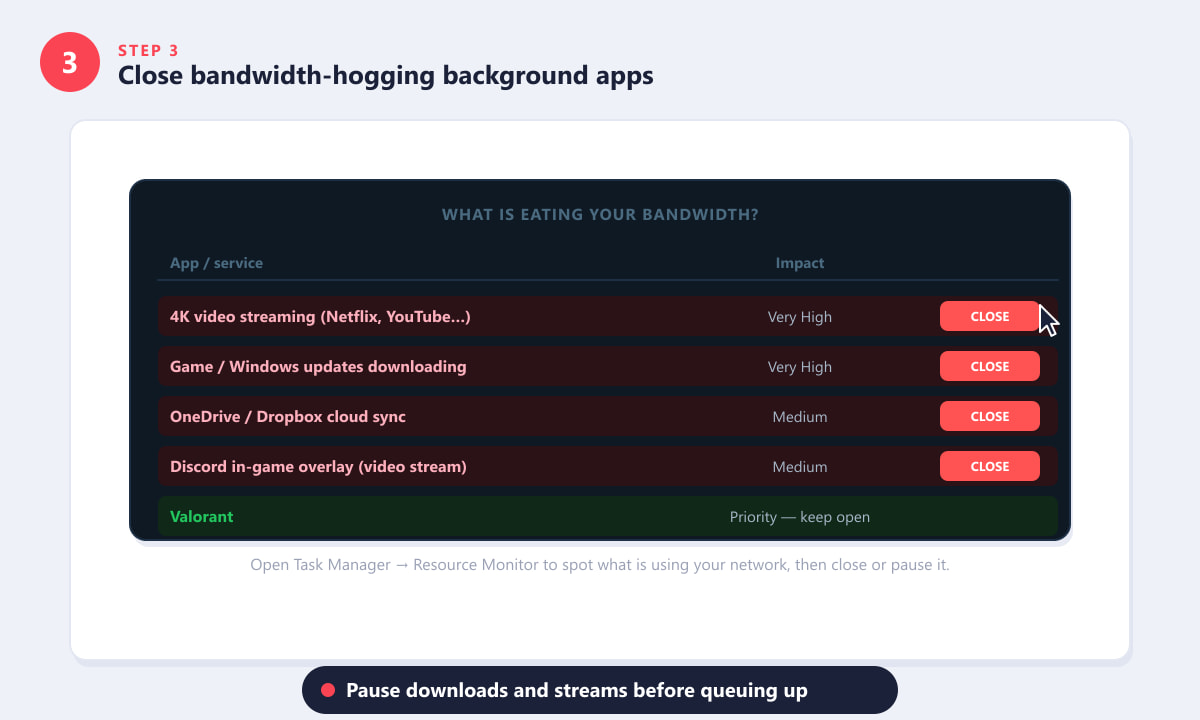
Pause downloads and close streaming services so Valorant gets priority on your connection. -
Step 4: Power-cycle your modem and router
Modems and routers can develop corrupted routing tables or overloaded NAT sessions after days of continuous uptime. A full power-cycle clears these faults. Unplug both devices from the wall, wait 30 seconds, then plug the modem back in first. Wait until all modem status lights show a stable connection (usually 60–90 seconds), then plug the router back in. While you have the cables out, check each one: a slightly loose coaxial connector or a bent Ethernet cable pin is enough to cause intermittent packet loss that no software fix will cure. After the restart, rejoin Valorant and check the overlay again.
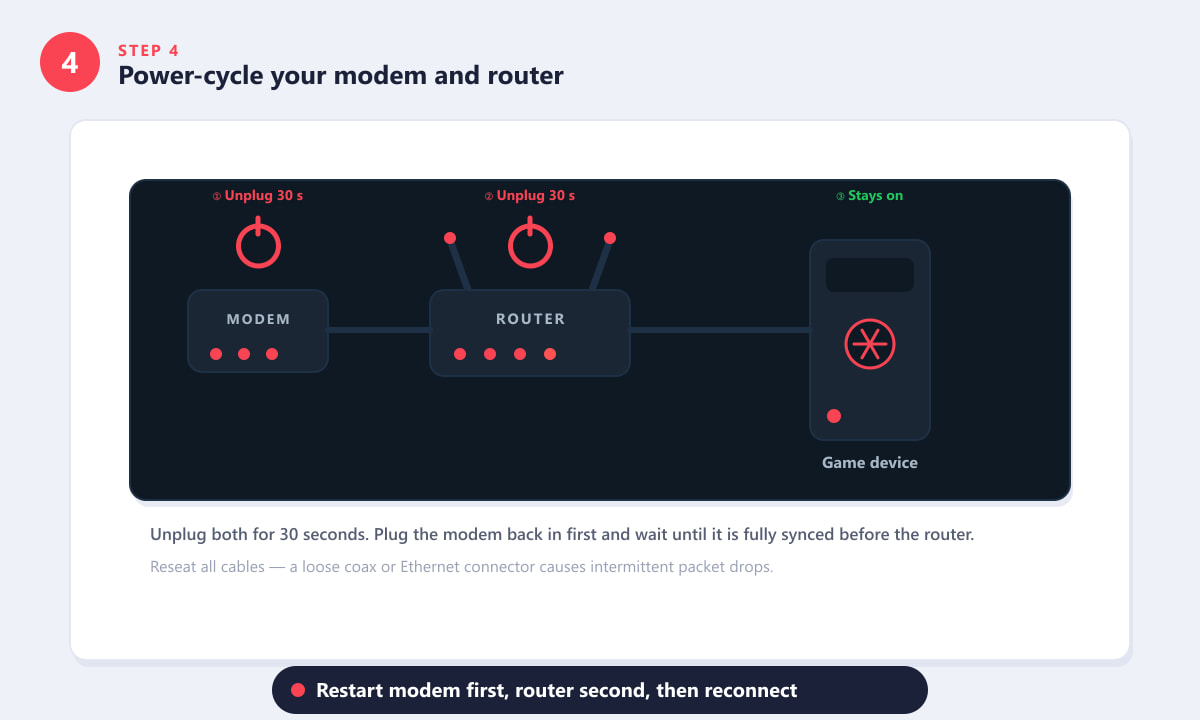
Restart the modem first, let it fully sync, then restart the router before reconnecting. -
Step 5: Select the correct game server region
Valorant automatically places you in the region closest to your location, but this can occasionally drift or be set wrong — especially after a region unlock. Routing your game traffic to a far-away server adds dozens of extra network hops, each one a new opportunity for a packet to drop. Go to Settings > Account and confirm your Game Server Region is set to the one nearest you. Switch to the region with the lowest displayed ping, apply the change, and restart the client. You will need to queue on that region's servers from this point forward.
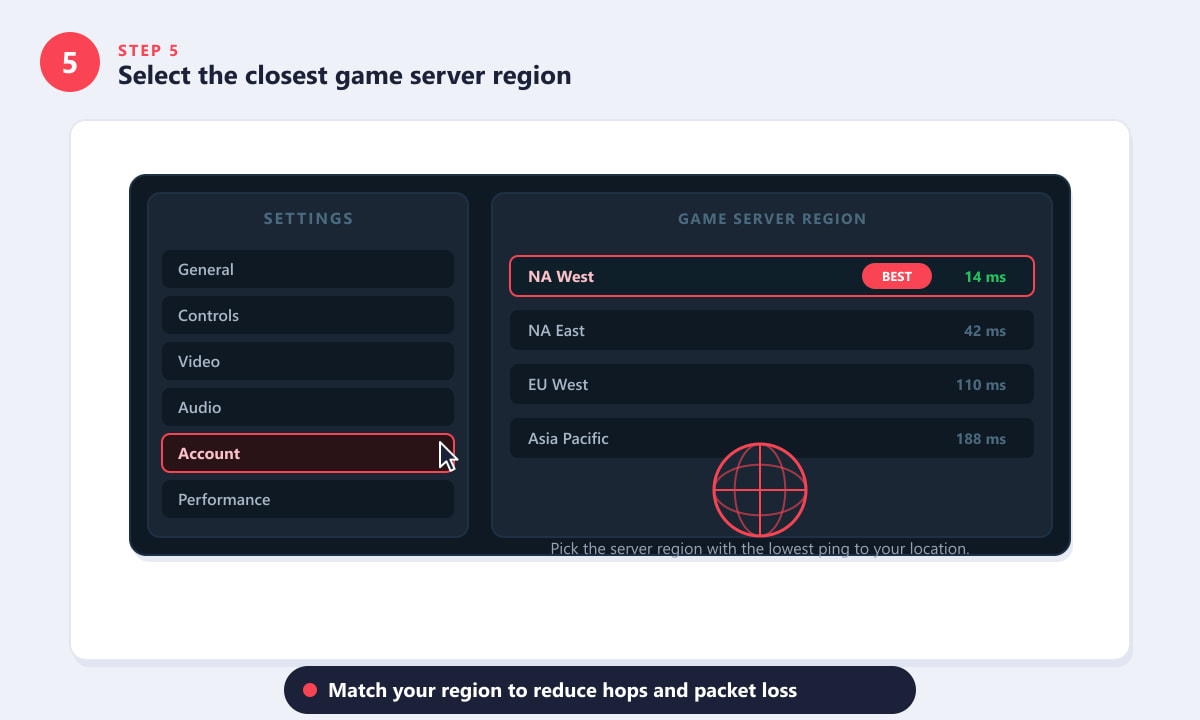
Under Settings > Account, choose the server region with the lowest ping for your location. -
Step 6: Update network drivers, flush DNS, and escalate to your ISP
If packet loss persists after the hardware and settings fixes above, the issue may be software- or ISP-related. Try these steps in order:
- Flush DNS: Open Command Prompt as administrator and run
ipconfig /flushdns, then restart Valorant. - Switch to a faster DNS: Set your preferred DNS to 1.1.1.1 (Cloudflare) or 8.8.8.8 (Google) in your network adapter settings.
- Update your NIC drivers: Open Device Manager, expand Network Adapters, right-click your Ethernet or Wi-Fi adapter, and choose Update Driver.
- Disable VPN or proxy software: VPNs add extra routing hops and can significantly increase packet loss — disable them for gaming.
- Test on a different connection: Tether to a mobile hotspot to confirm whether the problem is your home line or Riot's servers.
- Contact your ISP: If packet loss appears on other applications and other devices on the same connection, the problem is upstream. Run a packet-loss test and share the results when you call.
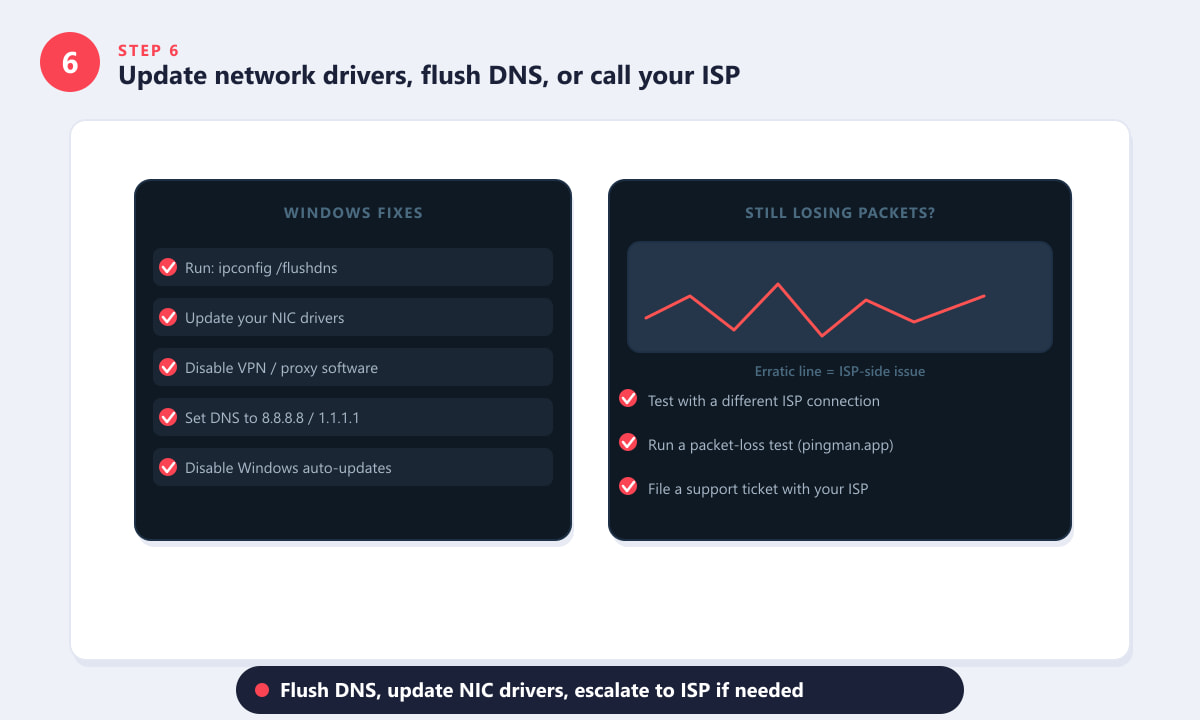
Software tweaks and driver updates resolve most remaining packet loss; an erratic line graph points to an ISP fault. - Flush DNS: Open Command Prompt as administrator and run
Quick tips
- Check Riot's server status first. If half of your lobby is rubber-banding, the issue might be Riot's servers. Visit the Riot Games status page before troubleshooting your own connection.
- Reboot after driver updates. Network driver changes are not fully active until you restart Windows.
- Use the firing range to test. The Valorant Practice Range counts as a live server session — you can test packet loss there without affecting a ranked match.
- Check router placement. If Ethernet is not an option, moving your router closer and ensuring line-of-sight to your PC reduces Wi-Fi packet loss significantly.
Frequently asked questions
What causes packet loss in Valorant?
The most common causes are Wi-Fi interference, network congestion from other devices on your connection, a degraded coaxial or Ethernet cable, an overloaded or outdated modem or router, selecting a far-away game server region, and in some cases a fault on your ISP's line between your home and Riot's servers.
How do I check packet loss in Valorant?
Press Shift + F3 in-game to toggle the Network Debug Stats overlay. Look at the PacketLoss stat. Alternatively, go to Settings > Video > Stats and set Network Debug Stats to Show before starting a match.
Is 1% packet loss bad in Valorant?
Occasional spikes to 1% are usually harmless. Sustained packet loss of 2% or higher is enough to cause noticeable rubber-banding and hit-registration failures. Anything above 5% makes the game nearly unplayable.
Can a VPN fix packet loss in Valorant?
Rarely, and only in specific cases where your ISP's routing to Riot's servers is suboptimal. In most cases, a VPN adds extra hops and increases packet loss rather than reducing it. Disable your VPN first and test without it before trying gaming-optimized VPN services.
Why does my Valorant packet loss spike only on certain maps or modes?
Server load changes between game modes and peak hours, and some maps use slightly different server resources. If spikes happen at the same time of day, your ISP's connection to Riot's servers is probably congested during peak evening hours. Try playing at off-peak times or contact your ISP with a traceroute showing where packets are being lost.
Final thoughts
Fixing packet loss in Valorant almost always comes down to the same short list: get off Wi-Fi, clear bandwidth for the game, restart your networking hardware, and make sure you are on the right server region. Work through the six steps above in order, checking the Network Debug Stats overlay after each change. Most players resolve the problem at Step 2 or Step 3 — the advanced driver and ISP steps are there for the rare cases where the hardware and settings are already correct but packets are still dropping upstream.