A Valorant black screen can happen at launch, on the loading screen, or right as a match begins — and it usually means the game has lost its connection to your display output. The good news is that a handful of well-known fixes clear the problem for almost every PC, and none of them require advanced technical knowledge. Work through the six steps below in order and you should be back in-game within minutes.
Before you start
Make sure you have done the basics first: restart your PC, check that your monitor cable is plugged in securely, and confirm that Valorant is not already running in the background via Task Manager. If the black screen still appears after a fresh reboot, follow the steps below.
How to fix the Valorant black screen
-
Step 1: Update Your GPU Drivers
An outdated or corrupted graphics driver is the single most common cause of a black screen in Valorant. Right-click the Start button and open Device Manager. Expand Display adapters, right-click your GPU (NVIDIA, AMD, or Intel), and select Update driver. Choose "Search automatically for drivers." Once the update finishes, restart your PC and relaunch Valorant. For best results, download the latest driver directly from your GPU maker's website (NVIDIA GeForce Experience or AMD Adrenalin) rather than relying on Windows alone.
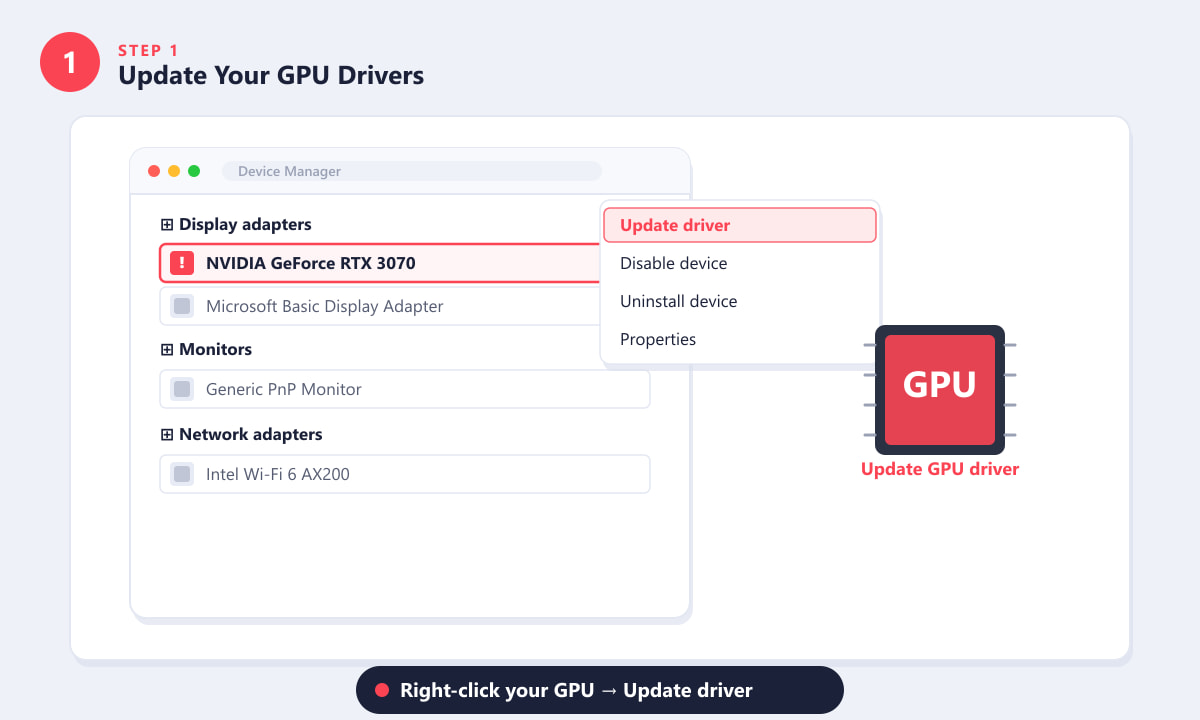
Open Device Manager, expand Display adapters, and right-click your GPU to update its driver. -
Step 2: Run Valorant as Administrator
Valorant's anti-cheat system, Vanguard, requires elevated privileges on some systems. Without them, the game can launch but display only a black screen. Find the VALORANT shortcut on your desktop, right-click it, and choose Run as administrator. Click Yes on the UAC prompt. If this fixes the problem, you can make it permanent: right-click the shortcut, go to Properties > Compatibility, and tick Run this program as an administrator.
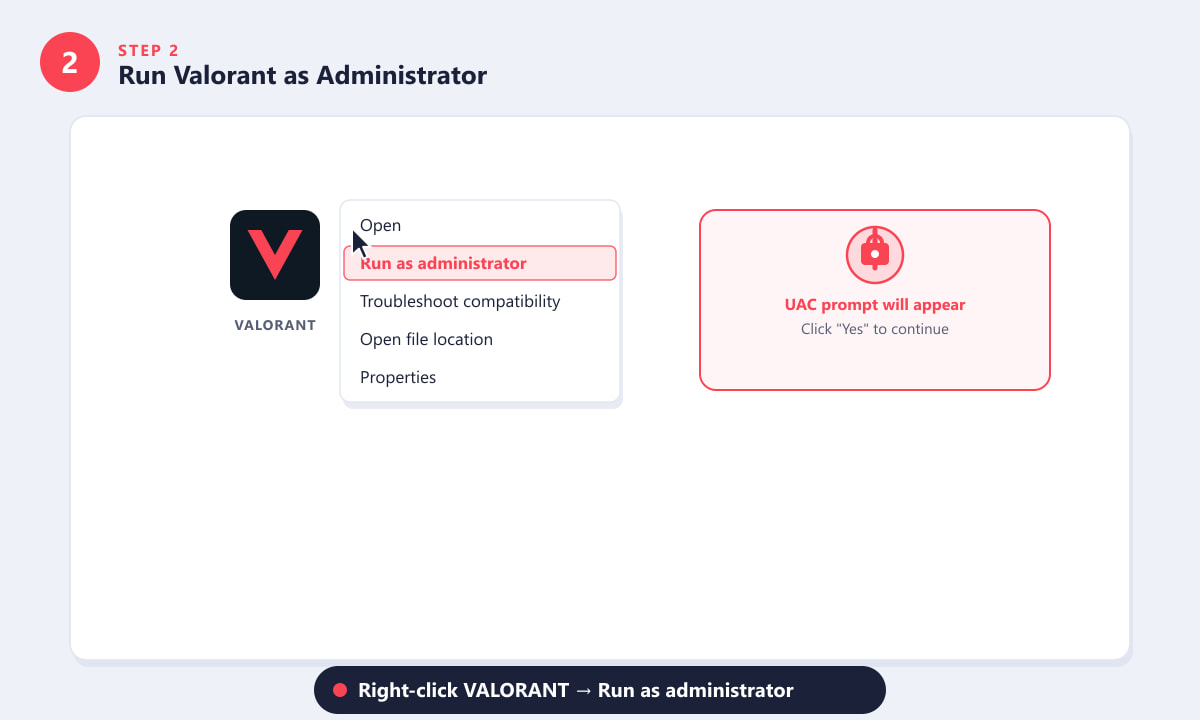
Right-click the VALORANT shortcut and select "Run as administrator" to give it the permissions it needs. -
Step 3: Disable Full-Screen Optimizations
Windows 10 and 11 include a "full-screen optimizations" feature that can conflict with Valorant's exclusive full-screen mode, resulting in a black screen. To disable it, right-click the VALORANT.exe file (found in your Riot Games installation folder), choose Properties, then open the Compatibility tab. Tick the box labelled Disable full-screen optimizations, click Apply, then OK. Relaunch the game. Many players find this single change is all they needed.
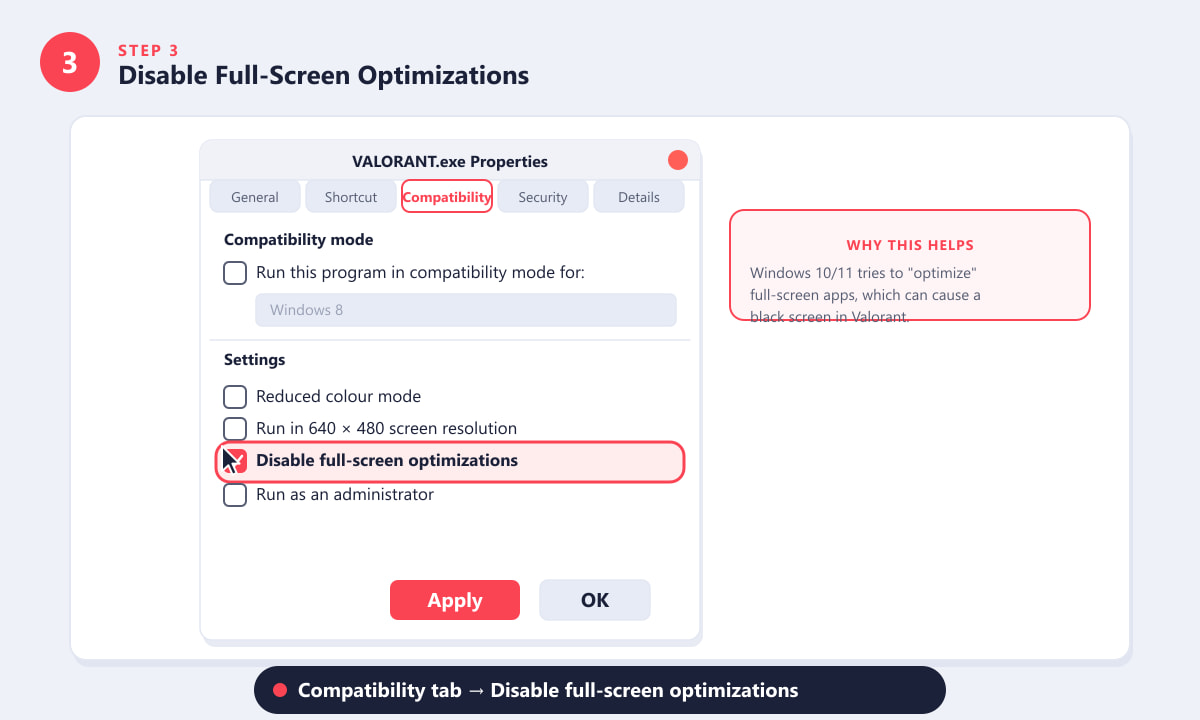
In the Compatibility tab, tick "Disable full-screen optimizations" and click Apply. -
Step 4: Check Your Display and Resolution Settings
If Valorant is set to a resolution or refresh rate your monitor cannot handle, it will fail to display anything. Open Settings > System > Display and confirm your Display resolution is set to the recommended value (usually 1920 × 1080 for most gaming monitors). Then check the Display refresh rate and set it to a rate your monitor actually supports — for example, 60 Hz, 144 Hz, or 240 Hz. If you use multiple monitors, try switching to Show only on 1 to rule out a secondary display issue before switching back.
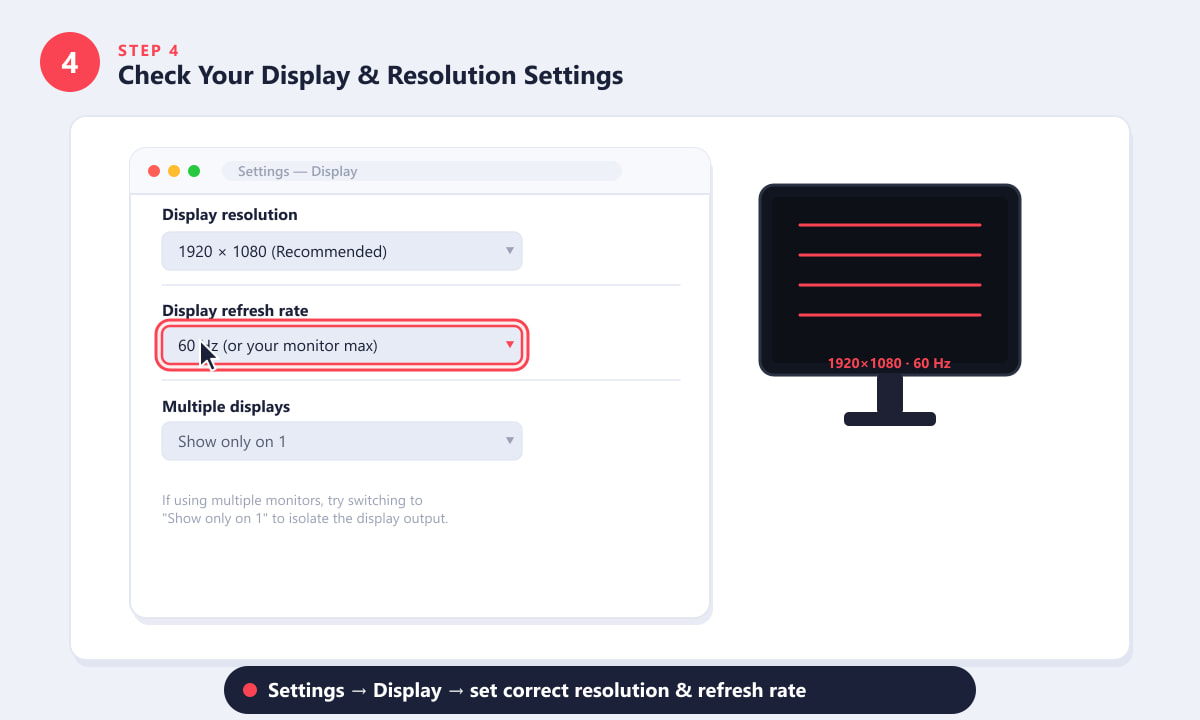
Set your resolution to the recommended value and choose a refresh rate your monitor supports. -
Step 5: Repair Game Files via Riot Client
Corrupt or missing game files can prevent Valorant from rendering properly. Open the Riot Client, click the settings cog icon next to the VALORANT launch button, and choose Repair. The client will verify and re-download any damaged files automatically. The process can take several minutes depending on your internet speed. Once it finishes, close and reopen the Riot Client, then try launching Valorant again.
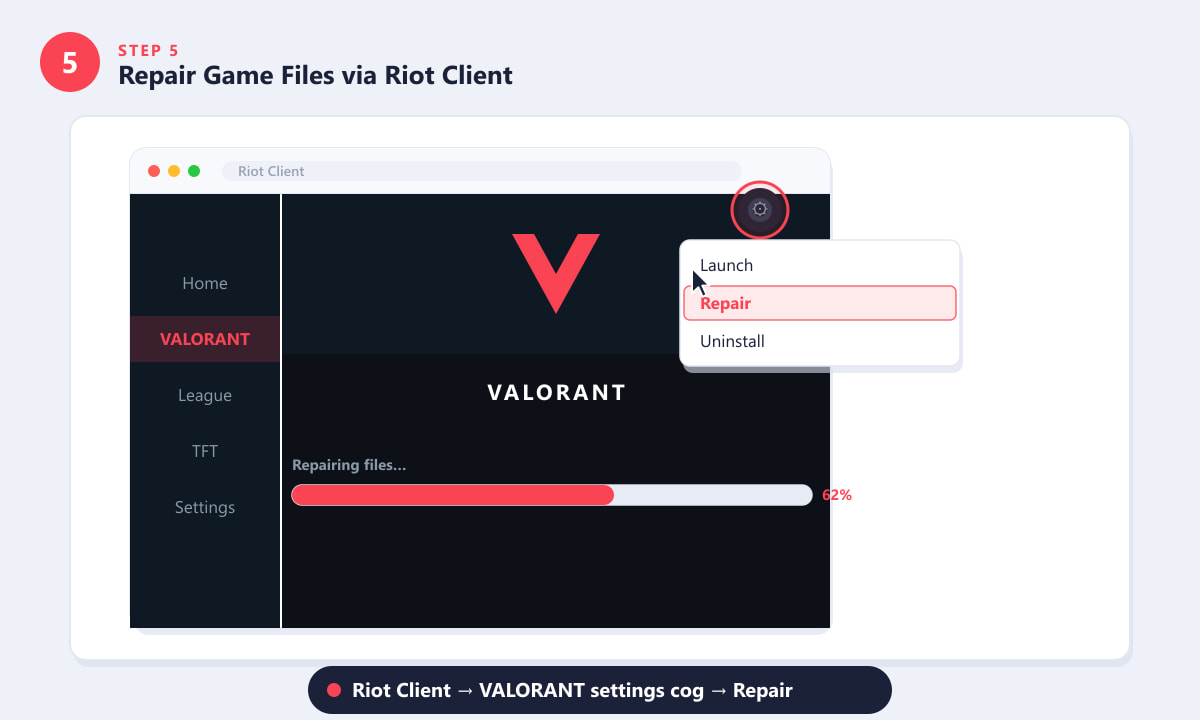
Click the cog icon in the Riot Client next to VALORANT, then choose Repair to verify game files. -
Step 6: Try a Clean Boot or Reinstall
If none of the above steps worked, a background application may be conflicting with Valorant or Vanguard. Press Win + R, type msconfig, and press Enter. Under the General tab, select Selective startup and uncheck Load startup items. Restart your PC and try Valorant again. As a last resort, fully uninstall the Riot Client via Add or Remove Programs, delete any leftover files in C:\Riot Games, then download a fresh installer from the official Valorant website and reinstall from scratch.
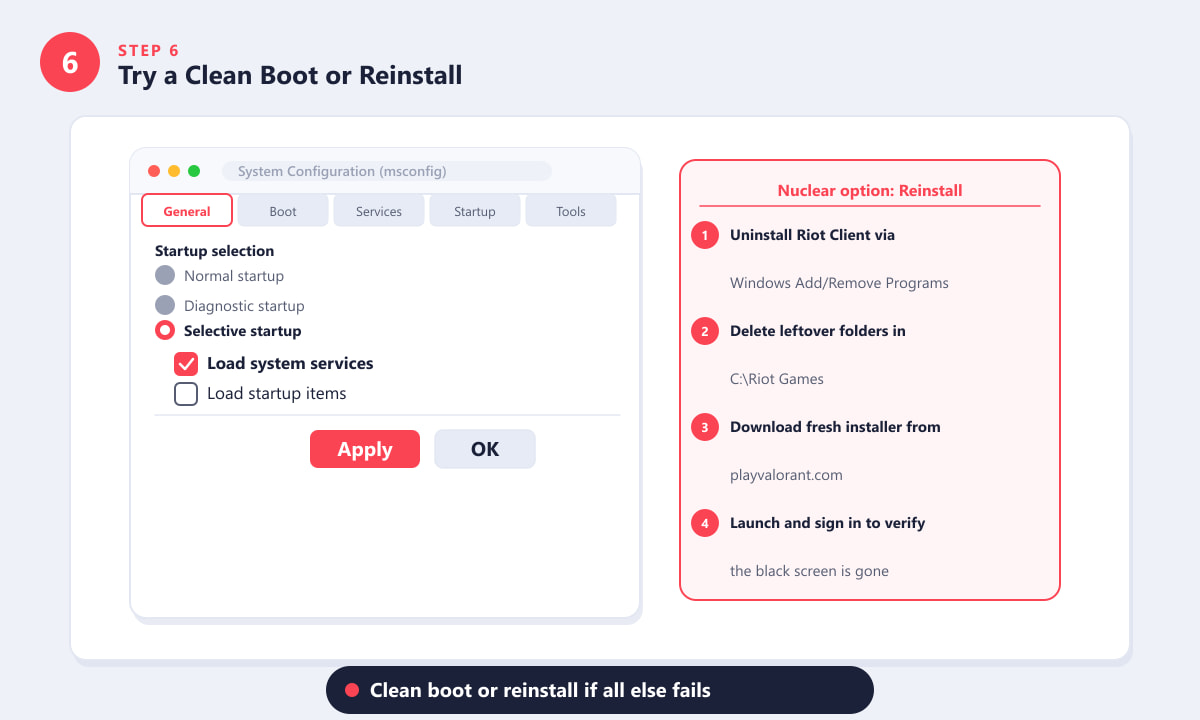
A clean boot isolates software conflicts; a fresh reinstall is the nuclear option if everything else fails.
Quick tips
- Press Alt + Enter during the black screen — this toggles between full-screen and windowed mode and can shock Valorant into rendering correctly.
- Try windowed mode in the game settings. Launch Valorant, let it sit on the black screen for 30 seconds, then hit Escape. Sometimes the menu is there but invisible. Navigate to Video settings and switch from Full Screen to Windowed Full Screen.
- Unplug secondary monitors temporarily. Extra displays can confuse Valorant's renderer, especially on first launch after a system change.
- Check Vanguard status. If the Vanguard tray icon shows an error, it may be blocking the game from starting. Restart Vanguard from the system tray or reboot your PC.
Troubleshooting
Valorant black screen but I can hear audio
If the game audio plays but the screen is black, it means Valorant launched successfully but cannot render to your display. Try pressing Alt + Enter to switch to windowed mode, or use the steps above to disable full-screen optimizations (Step 3) and verify your display settings (Step 4).
Black screen appears only on the loading screen
This is usually a driver issue. Update your GPU drivers (Step 1) and repair game files (Step 5). Also check that Windows Update has no pending updates, as graphics-related Windows patches can affect DirectX.
Valorant was working, then started showing a black screen after a Windows update
A Windows update sometimes overwrites GPU drivers with a generic Microsoft display driver. Open Device Manager, check whether your GPU now shows as "Microsoft Basic Display Adapter," and reinstall the proper driver from your GPU manufacturer's website.
Frequently asked questions
Why does Valorant open to a black screen?
The most common causes are outdated GPU drivers, Windows full-screen optimizations conflicting with the game, insufficient permissions for Vanguard, or corrupted game files. In most cases, updating your driver and disabling full-screen optimizations (Steps 1 and 3) resolves the issue.
Does the Valorant black screen happen on Windows 11?
Yes, and it is slightly more common on Windows 11 because the operating system's full-screen optimization handling changed. The fixes are identical: update your GPU driver, disable full-screen optimizations on the executable, and run the game as administrator.
Will reinstalling Valorant fix the black screen?
A clean reinstall fixes the problem when it is caused by corrupt game or Vanguard files. However, because the issue is often a driver or Windows setting, try Steps 1 through 5 before reinstalling to save time.
Can a faulty HDMI or DisplayPort cable cause a Valorant black screen?
It can, although this is rare. If the screen goes black only in Valorant but works normally in all other applications, the cable is unlikely to be the cause. But if your display sometimes flickers or goes blank in other contexts too, try a different cable or port as a quick sanity check.
How do I fix Valorant black screen without being able to see anything?
If the screen is completely black and you cannot navigate the game's menus, try Alt + Enter to switch to windowed mode. If that does not work, wait 30 seconds and press Alt + F4 to close the game, then apply the driver update or compatibility fixes before relaunching.
Wrapping up
Fixing the Valorant black screen is almost always a matter of updating your GPU driver, disabling Windows full-screen optimizations, or giving the game administrator access — three quick changes that solve the vast majority of cases. If you are still stuck after all six steps, check the official Valorant support portal for platform-specific guidance and to submit a ticket if needed.