Downloading League of Legends on Windows is free and takes only a few minutes — Riot Games provides an official installer that handles everything from account creation to the final game files. Follow the five steps below and you will be ready to queue up in no time.
What you need before you start
League of Legends is free to play and officially supports Windows 10 and Windows 11. You will need a stable internet connection (the full client is roughly 10–12 GB), a free Riot Games account, and administrator rights to run the installer. The game runs on most modern PCs — Riot publishes minimum and recommended specs on their website if you want to double-check your hardware.
How to download League of Legends on Windows
-
Step 1: Visit the Official League of Legends Website
Open your browser and go to leagueoflegends.com. Look for the prominent Play Now or Play Free button on the homepage. This always links to the official download, so you avoid third-party sites that may bundle unwanted software.

Head to leagueoflegends.com and click the Play Now button to start the process. -
Step 2: Create a Riot Account or Sign In
League of Legends requires a free Riot Games account. If you are new, click Create Account and fill in your email address, a unique username (this becomes your in-game name), and a password. If you already play Valorant, Teamfight Tactics, or any other Riot title, you can sign in with the same account — all Riot games share a single login.
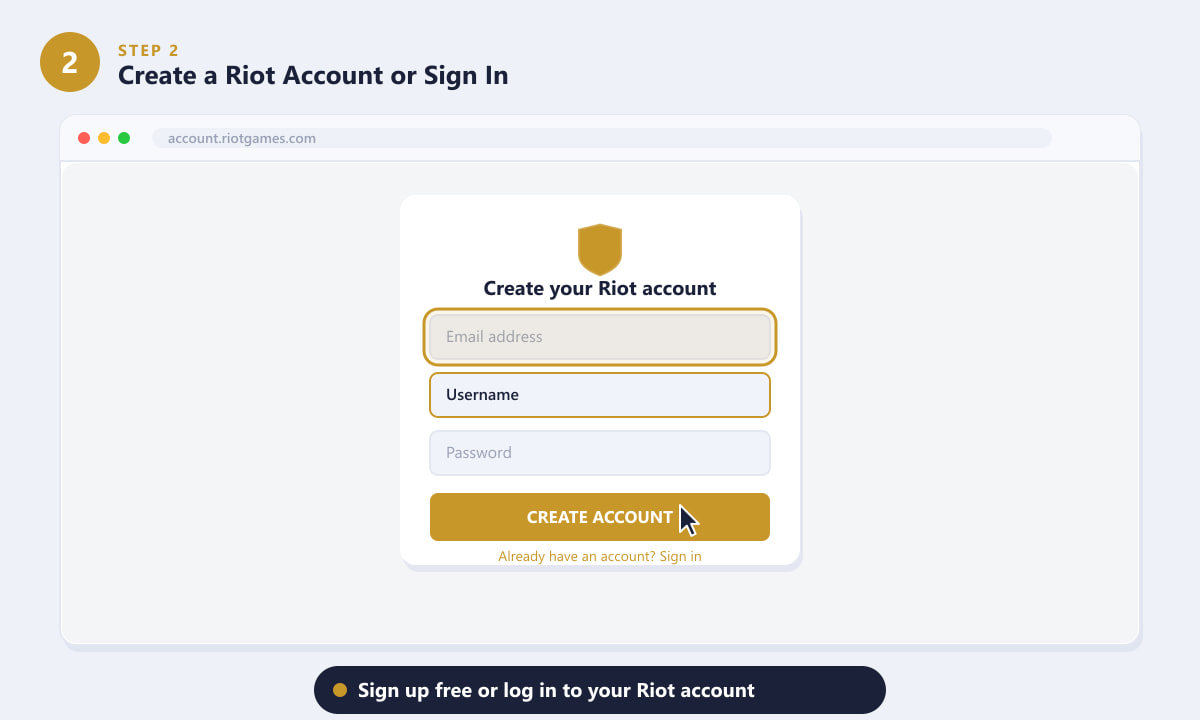
Create a free Riot account or sign in with an existing one — one account works for all Riot games. -
Step 3: Download the Riot Client Installer
After signing in, the site redirects you to the download page. Click Download for Windows. A small file called RiotClientInstaller.exe (roughly 1 MB) will be saved to your Downloads folder. This stub connects to Riot's servers and fetches the full client, so the initial download is very quick.
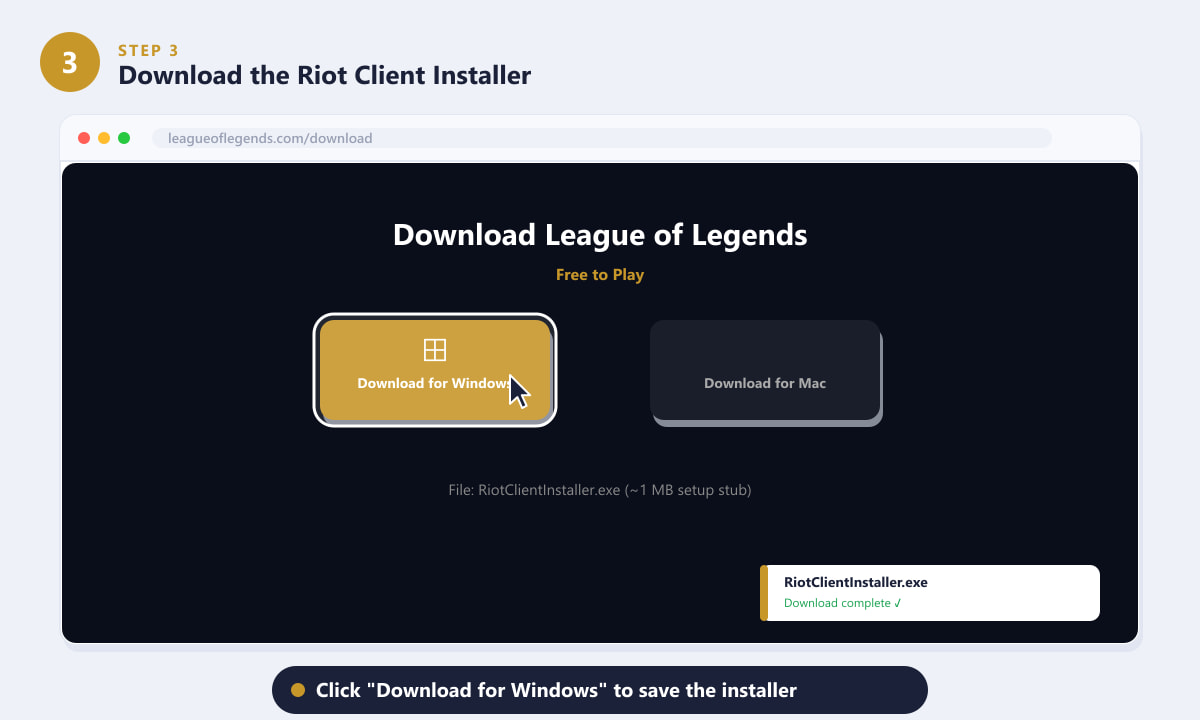
Click "Download for Windows" to save RiotClientInstaller.exe — it is only about 1 MB. -
Step 4: Run the Installer and Accept Permissions
Open your Downloads folder and double-click RiotClientInstaller.exe. Windows will show a User Account Control prompt asking if you want to allow the app to make changes to your device. Click Yes — the publisher is listed as Riot Games, so this is expected and safe. The Riot Client will then install itself (usually to
C:\Riot Games\) and begin downloading League of Legends automatically.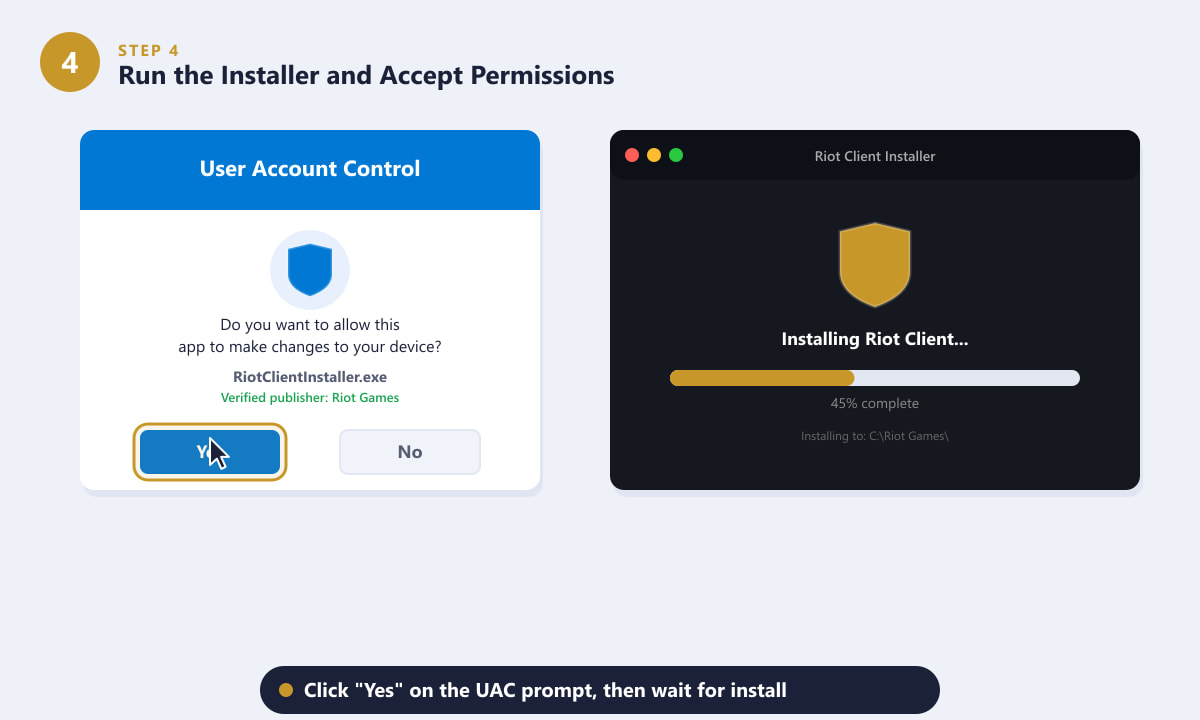
Click Yes on the UAC dialog — the verified publisher is Riot Games — then let the installer run. -
Step 5: Launch League of Legends and Patch
Once the Riot Client opens, select League of Legends in the left sidebar. The client will download and install the full game files. This patch can take anywhere from 20 minutes to over an hour depending on your internet speed. When the download reaches 100%, the PLAY button becomes active — click it to log in and launch the game.
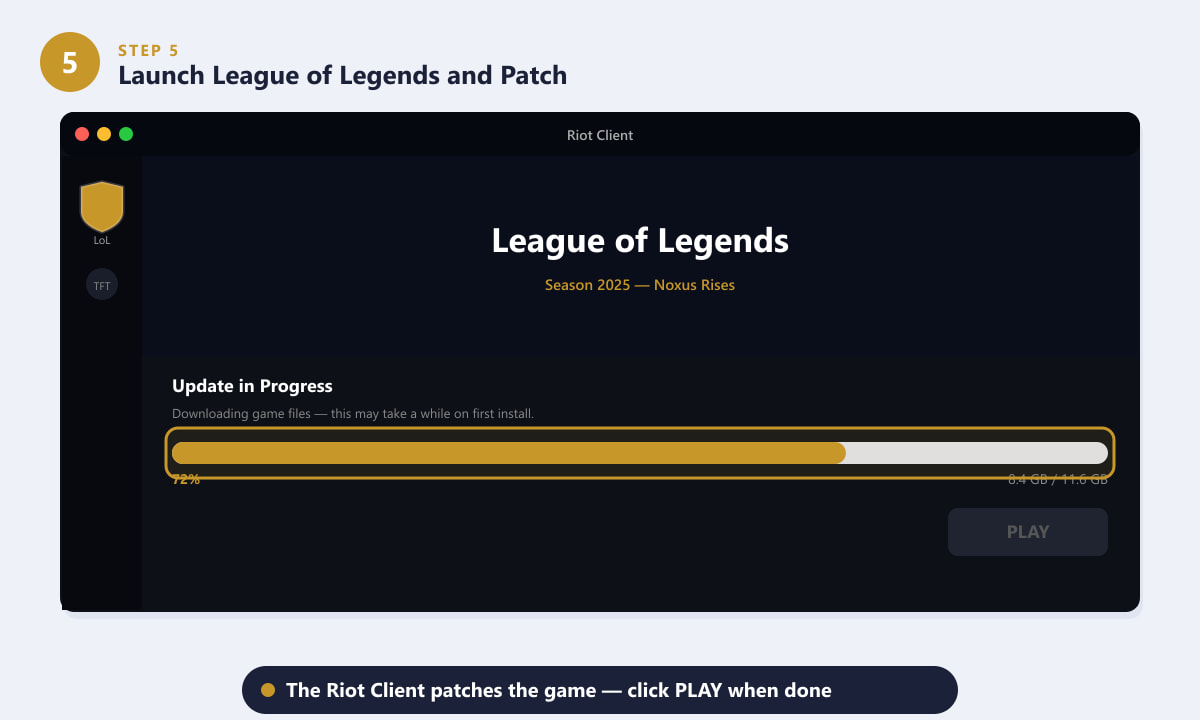
The Riot Client handles the full patch automatically — click PLAY once the download finishes.
Helpful tips
- Use a wired connection if possible. The initial download is large, and a wired Ethernet connection is both faster and more stable than Wi-Fi, which reduces the chance of a corrupted download mid-way.
- Keep the Riot Client running in the background. After installation, the client starts automatically with Windows and keeps the game patched, so you are always ready to play on patch day.
- Installation path. You can change the install directory during setup if you want to put the game on a different drive. SSD storage is recommended for faster load times in-game.
- Firewall exceptions. If the download seems to stall, check that Windows Defender Firewall is not blocking the Riot Client. Temporarily disabling third-party antivirus during installation can also help if the installer is being quarantined by mistake.
Troubleshooting
The installer freezes or the download stalls
Close the Riot Client, reopen it, and let it resume. If the issue persists, try running the installer as Administrator (right-click the .exe and choose Run as administrator). You can also visit Riot's support site to download a fresh copy of the installer.
Error: "You must be an administrator to install this software"
Right-click RiotClientInstaller.exe and select Run as administrator. Your user account may be set to Standard rather than Administrator; ask whoever manages the PC to grant you the necessary permissions or to run the installer for you.
The game downloads but the PLAY button stays greyed out
This usually means the patch is still verifying files after the download bar hits 100%. Give it a few extra minutes. If it stays stuck, restart the Riot Client and it should resume verifying automatically.
Frequently asked questions
Is League of Legends free to download on Windows?
Yes. League of Legends is completely free to download, install, and play. All 170+ champions are available through in-game currency earned by playing. Optional cosmetic items (skins, emotes) can be purchased, but nothing gameplay-affecting is behind a paywall.
How large is the League of Legends download?
The initial installer file is only about 1 MB, but the full game client is roughly 10–12 GB. Make sure you have at least 16 GB of free disk space available to allow room for future patches.
Can I use one Riot account for multiple Riot games?
Yes. A single Riot account gives you access to League of Legends, Teamfight Tactics, Valorant, Legends of Runeterra, and other Riot titles. You only need to create one account.
Does League of Legends work on Windows 11?
Yes, League of Legends is fully supported on Windows 11 as well as Windows 10. Riot Games regularly tests the game against the latest Windows updates, so you should not need to do anything special on Windows 11 beyond following the steps above.
Can I change where League of Legends is installed?
Yes. During the Riot Client installation process you will have an option to select a custom installation folder. If you miss that window, you can uninstall and reinstall the client and choose a different path at that point.
Ready to play
Downloading League of Legends on Windows is straightforward: grab the small installer from the official Riot Games site, create a free account, let the Riot Client fetch the full game, and hit Play. The whole process — excluding download time — takes under ten minutes. Once you are in, head to the Practice Tool to get comfortable with your first champion before jumping into a live match.