Running Apex Legends on a MacBook is possible, but not in the way most people expect. Respawn never released a native macOS version of Apex Legends, so you cannot simply download it from the Mac App Store and double-click. Instead, you reach the game through a workaround — cloud gaming, a real copy of Windows on an Intel Mac, or (with big caveats) a virtual machine. This guide walks through each method, explains which one fits your MacBook, and shows how to set it up.
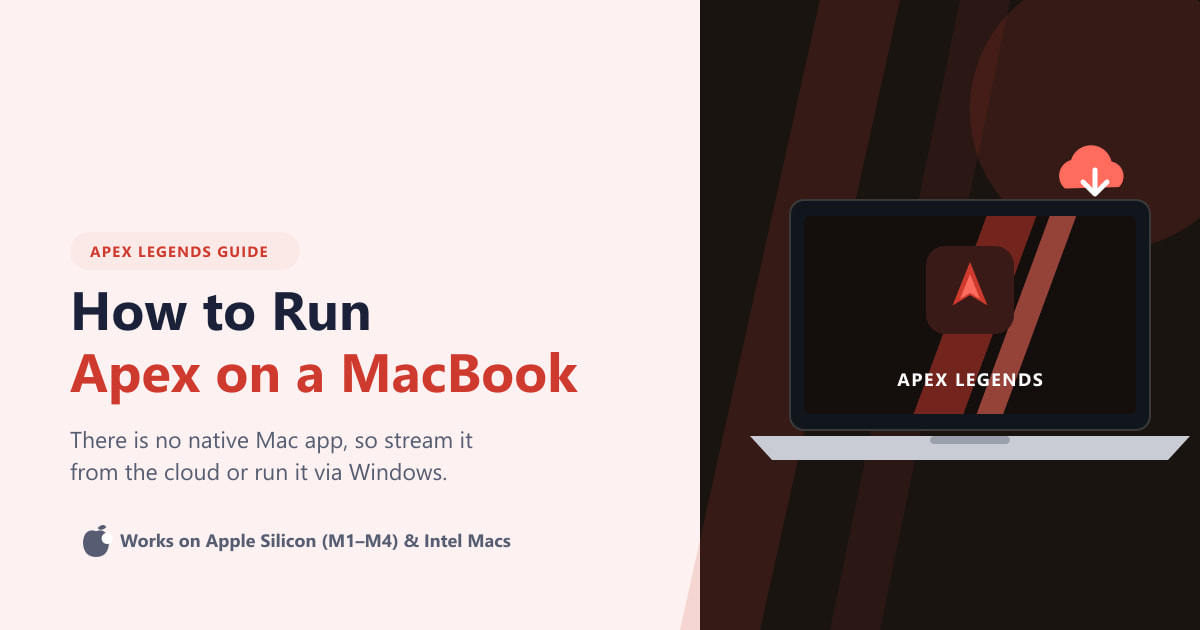
The right approach depends mostly on your chip. Modern MacBooks use Apple Silicon (the M1 through M4 family), while older models use Intel processors. That single detail decides whether Boot Camp is even an option, so it is the first thing to check.
What you need before you start
- A MacBook running a recent version of macOS (Sonoma 14 or later is ideal).
- A stable, fast internet connection — around 15 Mbps or more for cloud gaming.
- A free EA account, which Apex Legends requires no matter how you play.
- For Boot Camp: an Intel-based Mac and roughly 75 GB of free storage for Windows and the game.
- Optional but recommended: a Bluetooth controller or a USB mouse for better aim than the trackpad.
How to run Apex Legends on a MacBook
-
Step 1: Understand your options and check your Mac
Because there is no Mac version of Apex Legends, you are choosing between three routes. Open the Apple menu and click About This Mac to see your chip and macOS version. Cloud gaming works on every MacBook and is the easiest path. Boot Camp only works on Intel Macs. A Windows virtual machine is technically possible but usually blocked by the game's anti-cheat, so treat it as a last resort.
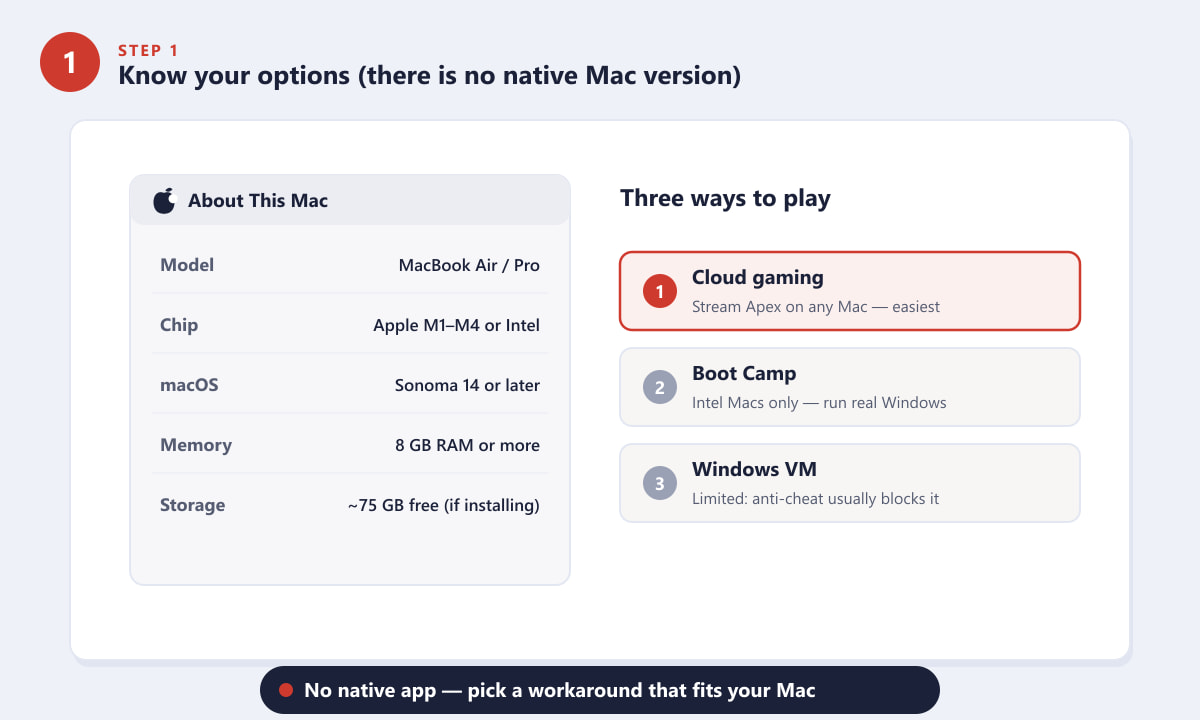
Check your chip in About This Mac, then pick the method that fits. -
Step 2: Best for all Macs — stream Apex from the cloud
Cloud gaming is the simplest and most reliable way to play Apex Legends on a MacBook, and it works on both Apple Silicon and Intel models. A streaming service such as NVIDIA GeForce NOW runs the game on a powerful remote PC and streams the video straight to your Mac through a browser or app. Create a free account, link your Steam or EA library, search for Apex Legends, and press Play. You get the full game with no install and no Windows partition.
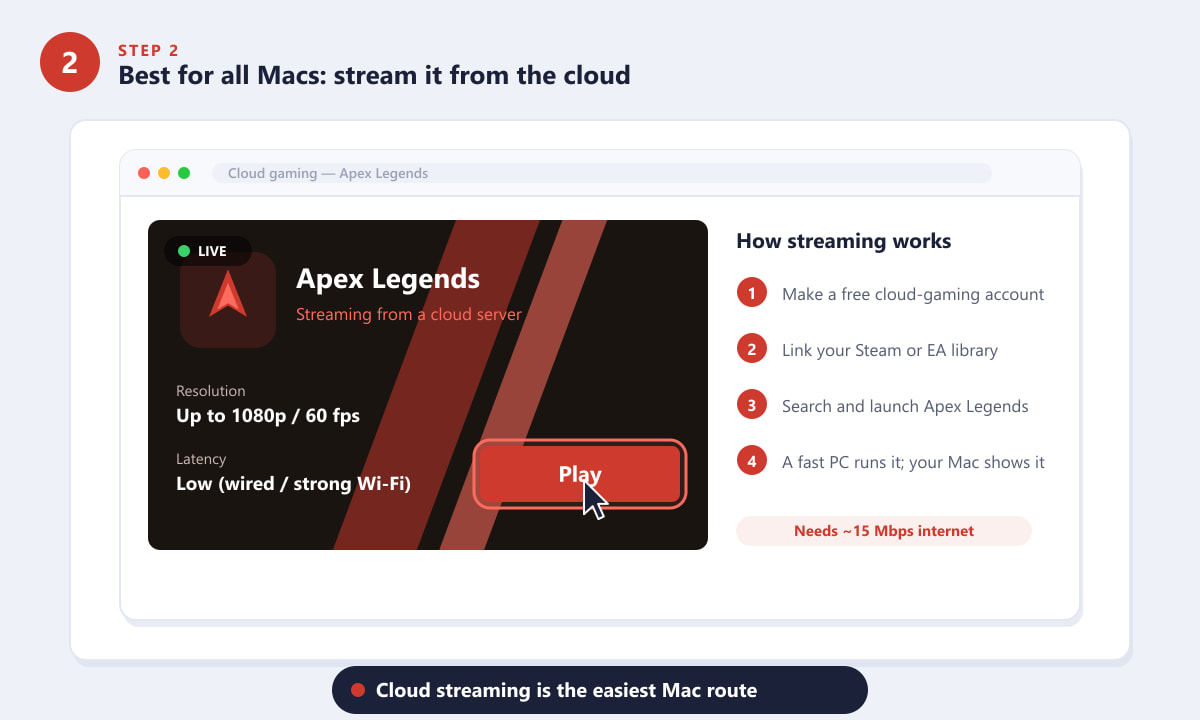
Cloud streaming runs Apex on a remote PC and displays it on your Mac. -
Step 3: Intel Macs — install Windows with Boot Camp
If your MacBook has an Intel processor, you can use the built-in Boot Camp Assistant to install Windows alongside macOS. Download a Windows 10 or 11 ISO, let Boot Camp create a Windows partition, then restart into Windows. Once you are in Windows, install Apex Legends free from Steam or the EA app and it will run natively. Note the catch: Apple Silicon Macs (M1–M4) cannot use Boot Camp because they have no way to boot x86 Windows, so this method is for Intel models only.
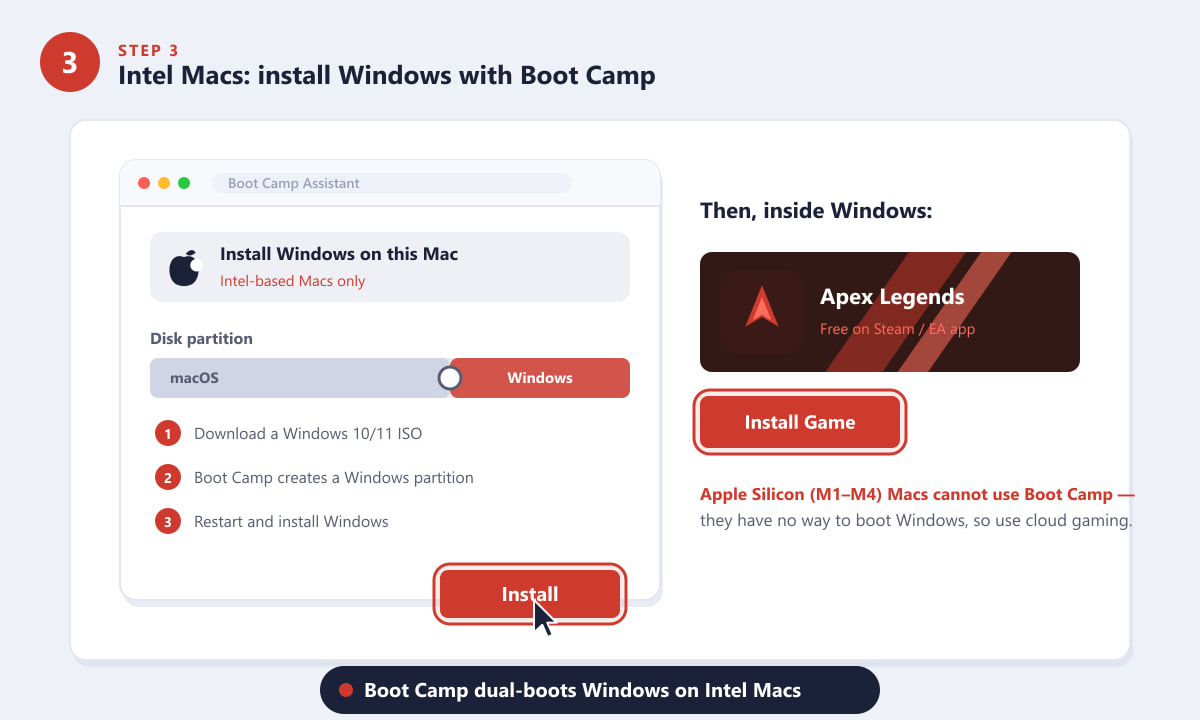
Boot Camp dual-boots Windows so Apex can run natively on Intel Macs. -
Step 4: Windows in a virtual machine (with caveats)
Tools like Parallels Desktop or VMware Fusion can run Windows inside macOS without restarting. In theory you could install Apex Legends there, but in practice it usually fails. Apex uses a kernel-level anti-cheat system that often flags virtual machines and refuses to launch the game. On Apple Silicon you can only run Windows on ARM in a VM, not the standard x86 build, which adds further problems. If you try this route, expect inconsistent results and lower performance.
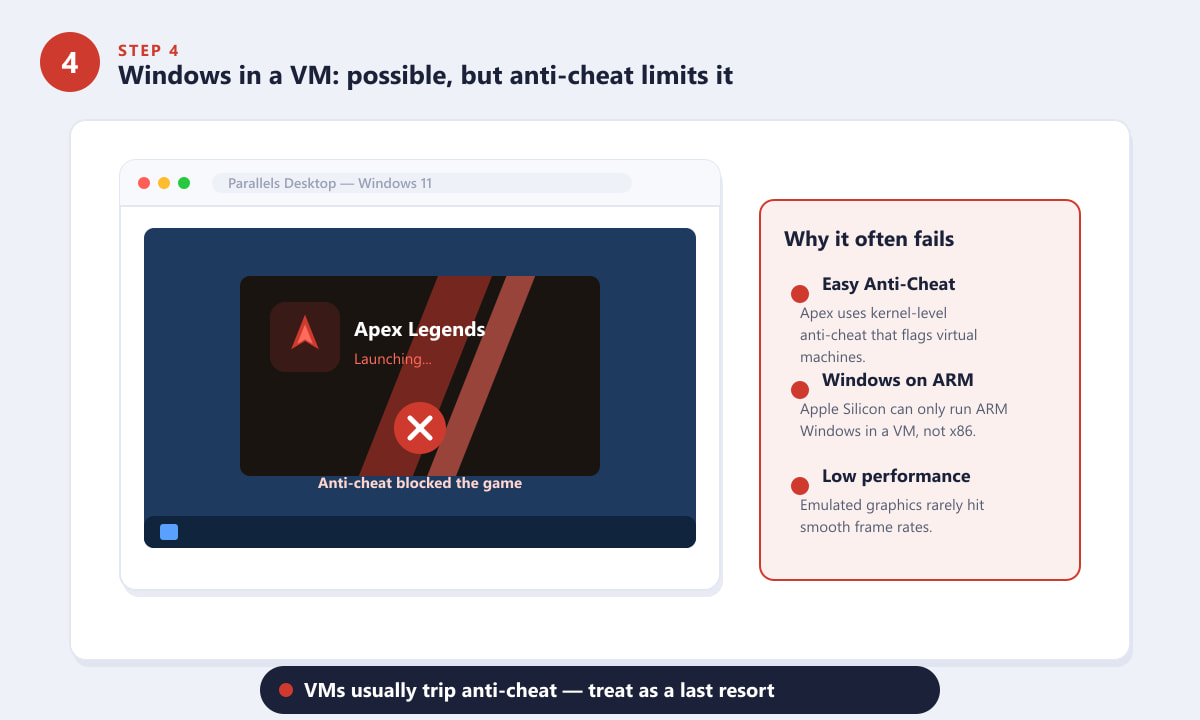
Virtual machines usually trip Apex's anti-cheat, so this is a last resort. -
Step 5: Launch the game and tune it for your Mac
However you get in, the final step is the same: launch Apex Legends, sign in with your EA account, and press Play to drop into Battle Royale, Ranked, or a Mixtape playlist. For the smoothest session, use a wired connection or 5 GHz Wi-Fi, lower the in-game graphics, pair a controller or mouse, and keep the MacBook plugged in so macOS does not throttle performance on battery.
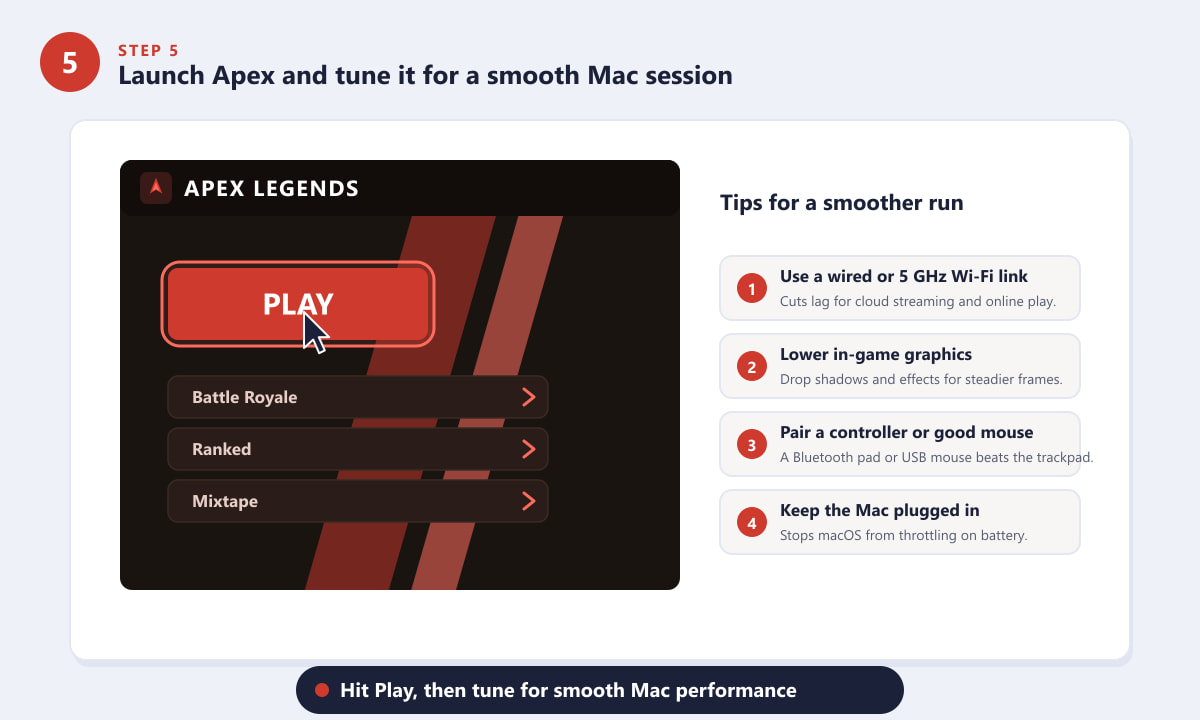
Hit Play, then adjust your connection and graphics for steady performance.
Tips for the best experience
- Start with cloud gaming. It is the only method that works on every MacBook and needs no install, which makes it the safest first try.
- Mind your internet. Streaming and online play both punish a weak connection. A wired Ethernet adapter beats Wi-Fi for stability.
- Skip the trackpad for aiming. A mouse or controller dramatically improves your gunplay in a fast shooter like Apex.
- Watch your storage. A native Boot Camp install of Windows plus Apex can easily use 75 GB or more, so clear space first.
Troubleshooting
Apex Legends will not launch in my virtual machine
This is expected. The anti-cheat system commonly detects virtual machines and blocks the game. Switch to cloud gaming or, on an Intel Mac, use Boot Camp instead.
I have an M1, M2, M3, or M4 MacBook — why can't I use Boot Camp?
Apple Silicon Macs cannot boot the standard x86 version of Windows, and Boot Camp was removed on these models. Cloud gaming is the recommended option for any Apple Silicon MacBook.
The cloud stream looks blurry or lags
Streaming quality depends on your network. Move closer to the router, switch to a wired connection, or lower the streaming resolution in the service's settings.
Frequently asked questions
Is there a native Mac version of Apex Legends?
No. Respawn and EA have never released a native macOS client, so there is no version you can install directly on a Mac. You must use cloud gaming or run the Windows version through Boot Camp.
Can I play Apex Legends on an M1 or M2 MacBook?
Yes, but only through cloud gaming. Apple Silicon Macs cannot use Boot Camp, and virtual machines are usually blocked by the anti-cheat, so streaming is the practical choice.
Is it free to run Apex Legends on a MacBook?
Apex Legends itself is free to play, but some cloud gaming services charge for higher-quality tiers, and Boot Camp requires a Windows license. A basic streaming setup can still be very low cost.
Does cloud gaming work well for a fast shooter like Apex?
It can, provided your internet is fast and stable. A wired connection or strong 5 GHz Wi-Fi keeps latency low enough for responsive aiming and movement.
Final thoughts
There is no shortcut to a native Mac build of Apex Legends, but you do not need one. For most people — and for every Apple Silicon MacBook — cloud gaming is the cleanest way to play, with Boot Camp reserved for older Intel models and virtual machines best avoided. Pick the method that matches your chip, sort out a solid connection, and you can be dropping into Kings Canyon from your MacBook in minutes. For the official details on the game, see the Apex Legends website.