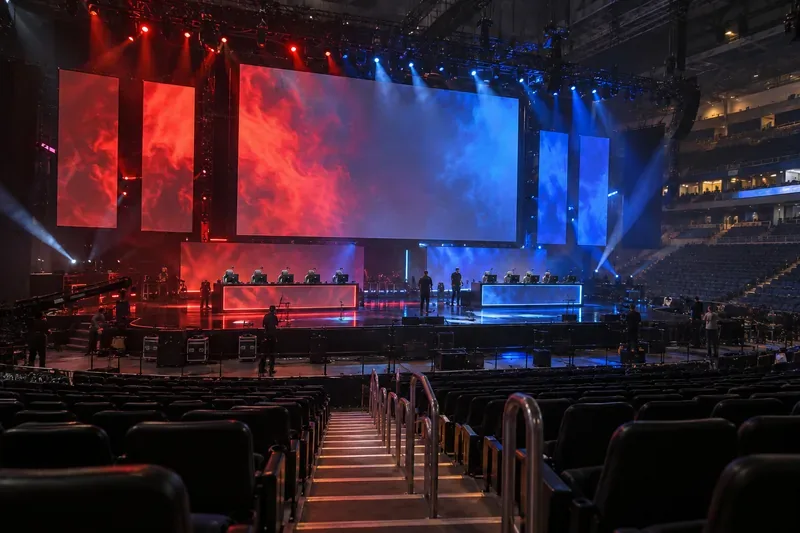
Best Audio Dynamic Range Setting for Headphones in Dota 2

Find the best Dota 2 headphone dynamic-range setup, learn when compression helps, and configure audio for clear cues without overly loud team fights.
When you swipe to check a side lane or follow a fight in Honor of Kings, the camera should move far enough to reveal the map without jumping past the action. The best camera panning sensitivity is the one that gives you that control with a short, repeatable thumb movement. There is no single number that works for every phone, hand position, or player.
If you are new, begin at the game’s default or middle-of-the-range camera sensitivity, then adjust one small step at a time. Lower it if the view overshoots; raise it if you repeatedly run out of screen before reaching the area you want to inspect. Treat any numerical suggestion you see online as a personal starting point, not an official competitive standard: Honor of Kings does not publish one universal recommended camera sensitivity value.
Camera panning is the speed or distance the view moves when you drag or swipe to look away from your hero. It is different from your hero’s movement joystick, skill aiming, and camera-follow behavior. Depending on the version and control layout, related options can be grouped under Controls or Camera. Read the setting label and its on-screen explanation before changing it; localized menus and updates can use different names.
Camera control matters because a MOBA map is larger than the visible play area. A quick glance toward a lane, river, or objective can help you understand what is happening before you rotate. But a camera that moves too far from a short swipe can make it harder to inspect one area carefully. Sensitivity affects how the view responds; it does not expand the map, reveal hidden opponents, or improve a hero’s attack range.
| Play style or issue | Starting approach | What to look for |
|---|---|---|
| New to manual camera movement | Keep the default value or choose a middle setting | Can you move the view to a nearby lane in one controlled swipe? |
| The view repeatedly jumps too far | Lower sensitivity slightly | Does the camera stop closer to the lane, river, or fight you intended to check? |
| You cannot reach the area you want without repeated swipes | Raise sensitivity slightly | Can you pan farther while keeping the endpoint predictable? |
| You mainly use fixed hero view | Keep a moderate setting while learning the camera control | Can you move the view away and return without losing track of your hero? |
| You often scan the map during rotations | Try a modest increase only after the default feels controlled | Does one swipe cover the distance you need without overshooting? |
These are practical tuning directions, not tested device benchmarks. The game’s slider scale, touch response, screen size, and how you hold the phone all affect the result. A “high” value on one device is not guaranteed to feel the same on another.
Use the same grip and device orientation during each comparison. If you switch from two thumbs to a claw grip, move your camera hand, or use a tablet instead of a phone, repeat the test. Those changes affect your available swipe distance and can make a previously comfortable sensitivity feel different.
If you want to scan the river or a side lane while moving between areas, a somewhat quicker response may reduce repeated dragging. Increase the setting gradually and make sure you can stop the view near a specific map landmark. A fast pan is useful only when you can control where it ends.
If moving the camera makes it difficult to keep a fight in view, or your swipes send the view farther than intended, lower the setting. The aim is not to make camera movement slow in every situation; it is to keep the visual information you need on screen while you make decisions.
Do not assume a compact phone always needs a higher value. A small swipe may already cover a large share of the usable screen, which can make high sensitivity feel jumpy. Test a middle setting first, then adjust based on whether you can reach your target without overshooting.
Honor of Kings updates and localized clients can change menu organization or setting names. For game-specific tutorials, consult the official Honor of Kings Guides hub; the official Honor of Kings Support site is the appropriate place to check for client-specific help. The recommendation here is intentionally qualitative because a verified universal sensitivity number was not available in the official material reviewed on October 8, 2026.
Find the best Dota 2 headphone dynamic-range setup, learn when compression helps, and configure audio for clear cues without overly loud team fights.
Fix League of Legends critical errors on launch by checking overlays, repairing game files, updating drivers, and testing configuration and service conflicts.
Start with a practical mouse-speed baseline for StarCraft: Remastered, then tune sensitivity for accurate unit selection, minimap clicks, and scrolling.
Troubleshoot Dota 2 stuck on Connecting to the Game Coordinator. Check for a service issue, restart Steam, test your network, and verify game files.
Find the best phone screen scale for Clash Royale card placement. Learn why default display settings are usually safest and how to test Android or iPhone adjustments.
Set up a dedicated Drive Impact button on your SF6 arcade stick, check hand reach, fix missed inputs, and test your reactions with practical training drills.
Find a comfortable Honor of Kings camera panning sensitivity with a beginner-friendly baseline, role-based adjustments, and a simple in-game test.
Separate network lag from FPS stutter in Heroes of the Storm, then choose targeted fixes for ping spikes, Wi-Fi, PC performance, drivers, and game files.
Team Secret Whales face LYON in a Worlds 2026 Swiss Stage BO1. See the 7:00 p.m. CDT Oct. 23 start in Allen, equal to 00:00 UTC Oct. 24.
LOS and T1 meet in Worlds 2026 Swiss Round 1 on October 23. See the 23:00 UTC start, Allen local time, best-of-one format, lineup status, and official result page.