Best Audio Dynamic Range Setting for Headphones in Dota 2

Find the best Dota 2 headphone dynamic-range setup, learn when compression helps, and configure audio for clear cues without overly loud team fights.
You click Play, the League client opens, and a critical-error dialog stops you before you reach a match. The first useful question is not whether you should reinstall everything. It is whether you are seeing the generic critical-error message, a numbered Vanguard error, or a failure specifically after champion select.
For the generic League of Legends critical error on launch, start by closing overlay applications and restarting Windows. If it returns, repair League through the Riot Client, check graphics drivers and Windows updates, then test configuration files and background-service conflicts. Change one thing at a time and retest outside a live queue.
This guide focuses on Windows. The illustrations show reference views of the relevant dialogs and controls, not results from a tested PC. Exact appearance can vary with the Windows build and Riot Client version.
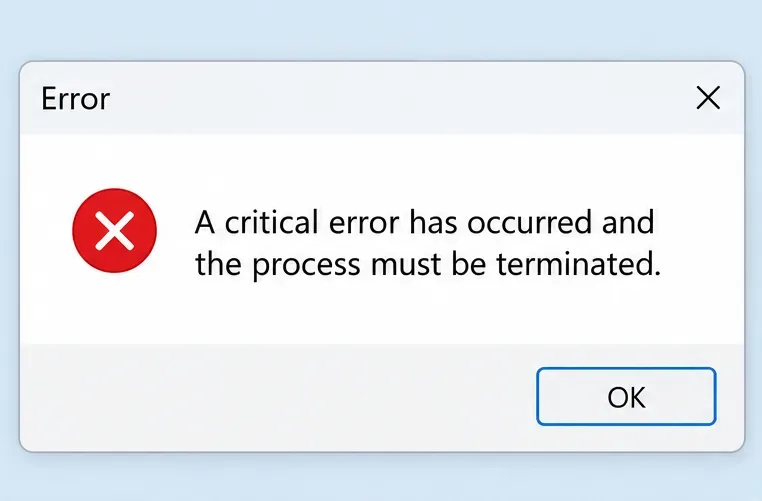
Capture the full message before dismissing it. Record whether it appears when opening the Riot Client, opening League, or entering the match loading screen. These are different failure points, even if they all feel like “League will not launch.”
| What you see | Where to start |
|---|---|
| A critical-error dialog without a VAN code | Close overlays, restart, and continue through this guide. |
| A code beginning with VAN | Use Riot’s instructions for that exact Vanguard code. |
| Client works, but the game fails after champion select | Use Riot’s game-launch troubleshooting alongside the applicable steps below. |
| Update or login failure during regional maintenance | Check service status before changing local files. |
Riot’s League error reference associates the critical-error message with overlay programs and routes VAN errors separately. That makes overlays the first targeted check; it does not establish the cause of every individual crash.
Check Riot’s service-status page for your region. A maintenance notice can explain unavailable services, but does not by itself explain a local crash. This article does not claim that an outage is currently active.
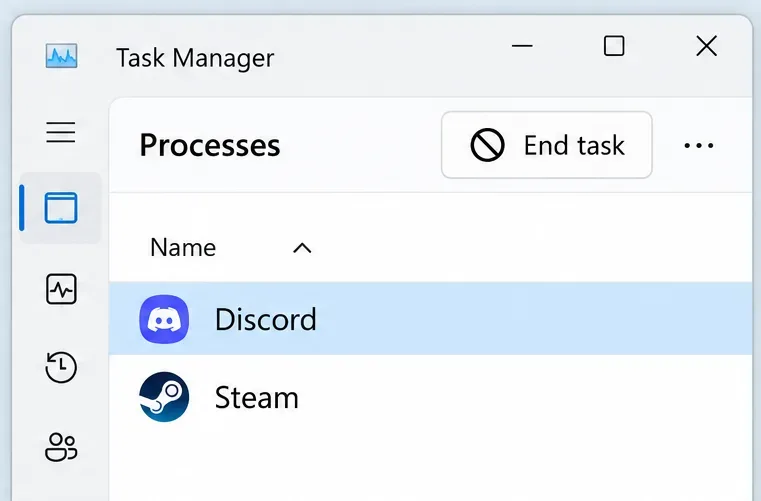
Exit Discord, Steam, recording software, GPU monitoring tools, and other applications that add an overlay or hook into games. Closing a window may leave an application running in the notification area. Use its Exit command, or inspect Task Manager with Ctrl + Shift + Esc and end only the application you recognize.
Close League and the Riot Client, then choose Restart from Windows’ power menu. After Windows returns, launch the Riot Client without reopening the overlay applications. If League works, reopen those applications individually and retest. A repeatable failure when one application returns is more informative than one successful launch with everything closed.
Keep the conflicting overlay off for League, update that application, or consult its support documentation. Avoid treating a software conflict as a reason to disable Windows security protections.
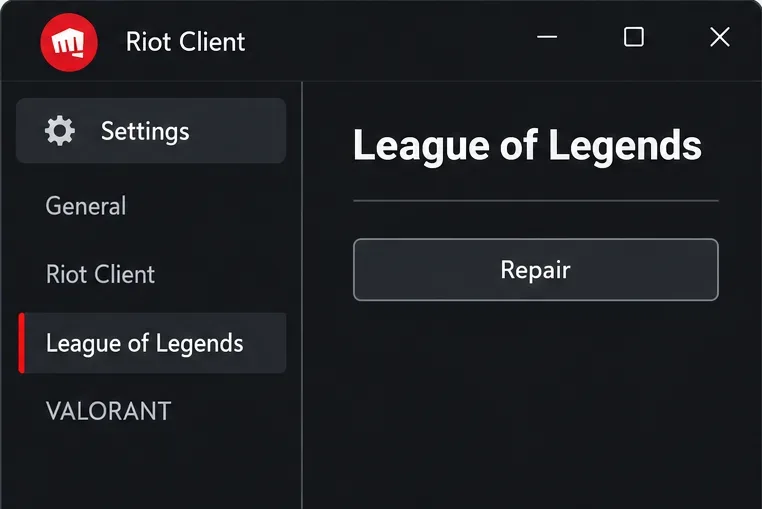
Yes, if you can access the Riot Client. Repair is the less disruptive check for missing or damaged game files. Riot’s current Full Repair instructions, updated May 30, 2026, use this route:
Let the operation finish before testing again. If the client cannot open far enough to reach Settings, skip this step and note that limitation for support. Do not repeatedly launch the game while a repair or update is still running.
The Riot Client’s built-in repair and the downloadable Riot Repair Tool serve different purposes. Built-in Repair addresses game files; the downloadable RRT collects diagnostic logs. Downloading RRT alone is not proof that your installation has been repaired.
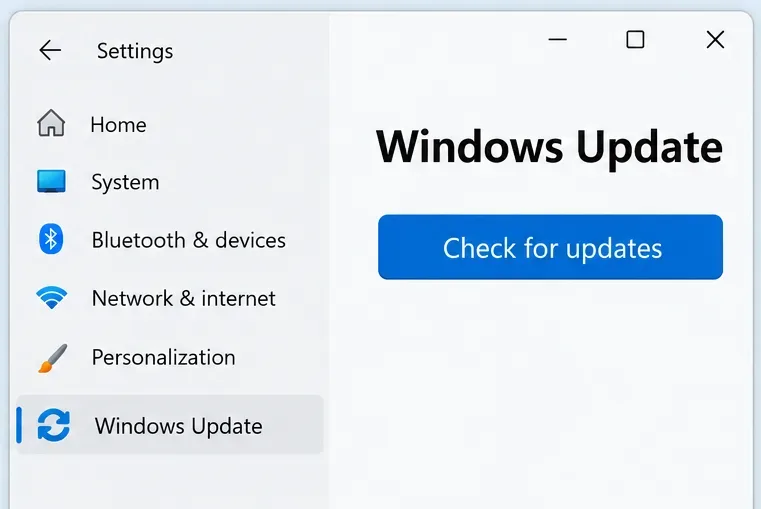
Open Settings > Windows Update and check for available updates. Finish installation and restart when requested before retesting. Riot includes Windows updates in its general PC crash troubleshooting, because operating-system fixes can affect game compatibility and graphics components.
If the error explicitly names a Vanguard security requirement, follow that specific requirement instead of experimenting with unrelated BIOS settings. A generic critical-error dialog does not tell you to turn off Secure Boot, TPM, Memory Integrity, or Exploit Protection.
Also compare your machine with Riot’s current requirements before spending time on repeated reinstalls. Software repair cannot add a graphics feature your hardware lacks.
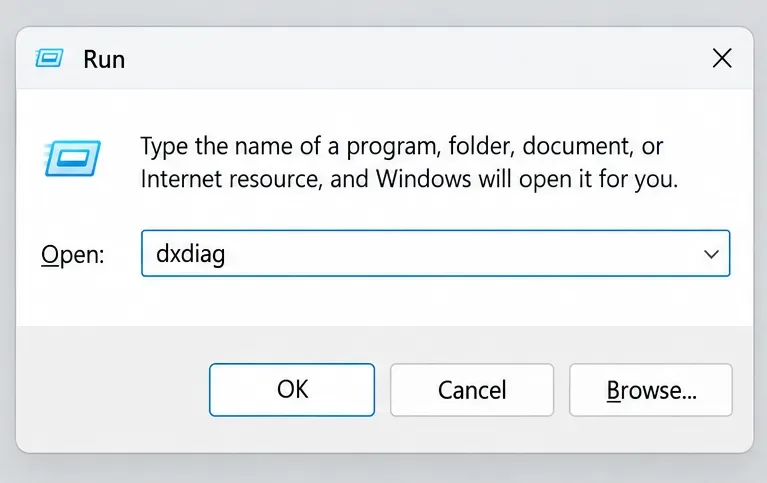
Press Windows + R, type dxdiag, and press Enter. Open the Display tab and note the GPU name and manufacturer. Riot documents this identification method in its graphics-driver guide. Use its official manufacturer links to obtain the appropriate driver, then restart if the installer requires it.
Riot’s League system-requirements page, updated September 22, 2026, specifies DirectX 11 feature level 11_0 for Windows. The DirectX version printed on the System tab is not the same as the GPU’s supported feature levels. Check the Display information rather than assuming “DirectX 12” on the computer guarantees every required hardware capability.
On a laptop with multiple GPUs, record which adapters are present so support can evaluate the configuration. Avoid third-party driver bundles and standalone DLL downloads. This step checks a plausible graphics-related cause; it does not mean every critical error is a driver failure.
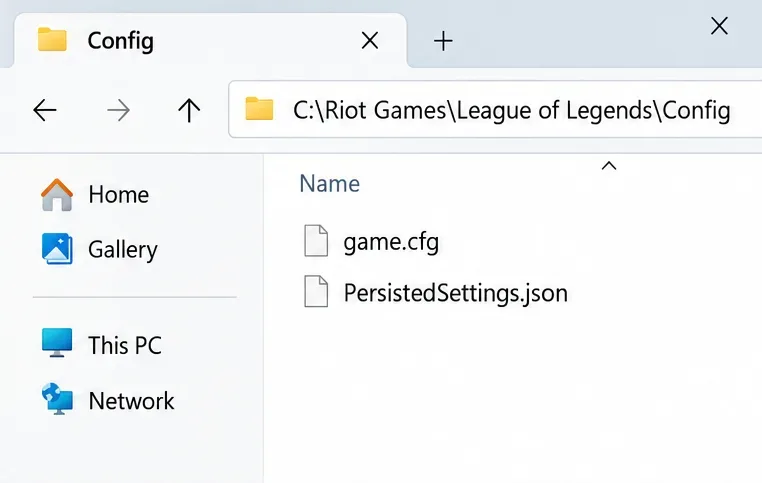
Consider a configuration reset if overlays, restart, repair, and updates did not resolve the error, especially when it began after settings changed. Back up your existing settings files first. A reset may change controls and video preferences.
Use Riot’s configuration-reset procedure, updated September 19, 2026. Close League and the Riot Client, then open the Config directory inside your League installation. The default path is C:\Riot Games\League of Legends\Config; your installation may be elsewhere.
After saving a backup outside the installation, delete the contents of Config. Riot then instructs you to open the Riot Client and remove configuration files that reappear, log into League and remove files that reappear again, and enter a custom game for around five minutes before closing and logging out. If you cannot reach that custom game, record where the process stops.
Follow the League section of the document. Do not apply the separate VALORANT paths, delete a similarly named Windows folder, or remove unrelated Riot games. The older error-code table mentions broader folder deletion; this guide uses the newer, targeted configuration instructions.
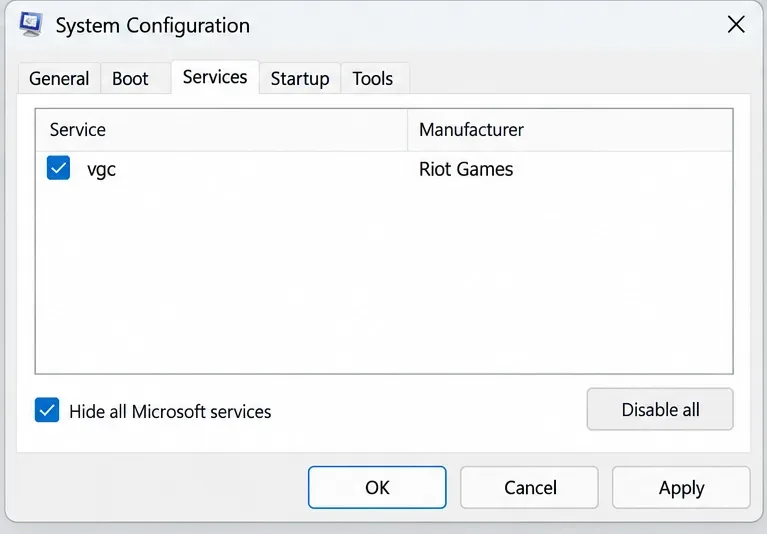
A clean boot is useful when closing visible overlay applications was not enough. Riot’s clean-boot instructions include a crucial Vanguard exception:
msconfig, and open the Services tab.vgc and check its box again.Record the original service selections first. Keep Vanguard available during the test: disabling its service can introduce a different launch error and make the result misleading.
If this test works, restore the disabled nonessential services in small groups, restarting and retesting to narrow down the conflict. Microsoft’s clean-boot documentation also explains startup-app isolation and returning to normal startup. Restore the configuration when you finish; do not leave unrelated services disabled indefinitely. Leave advanced boot options alone.
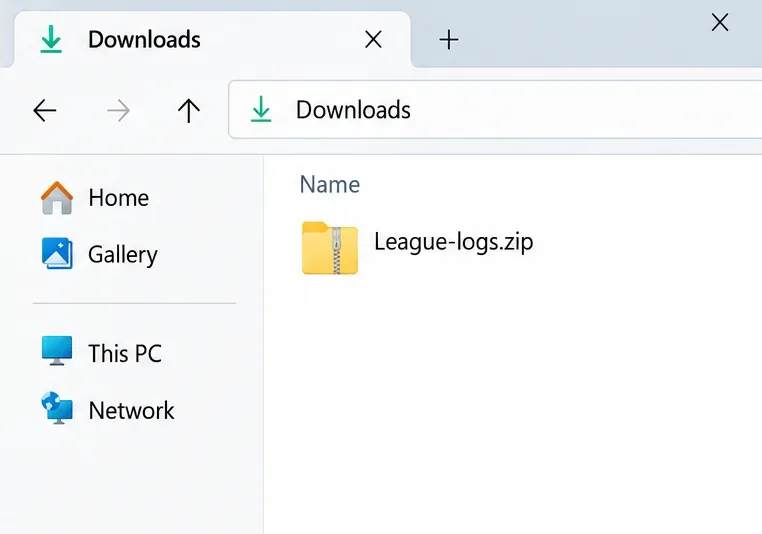
Collect evidence before repeated deletion or reinstalls. Download RRT only from Riot’s official log-collection page. On Windows, run it as administrator, select League of Legends, and attach the ZIP it creates to a Riot support ticket. The actual archive name may differ from the example shown.
Include the complete error text, the launch stage, when it started, your Windows version and GPU, and which steps changed the behavior. For example, “Repair completed, but the same dialog appears before loading; closing Discord did not change it” is useful. “Nothing works” leaves support without a reproducible starting point.
If the failure occurs only after champion select, consult Riot’s dedicated post-selection launch guide. It covers additional checks such as compatibility mode and security-software exceptions. Use exceptions for the verified installed executables when appropriate, rather than broadly excluding your entire drive. Let the symptoms and support findings guide any clean reinstall.
Test beyond the client home screen. Launch League, enter a solo custom game or Practice Tool, remain in game for several minutes, then close and reopen it. Repeat after a Windows restart with the background applications you normally use, keeping any confirmed conflicting overlay disabled.
A successful login does not establish that the game process can load. If the error returns, note the last action before it occurred and preserve the new logs. Keep the smallest change that produces repeatable success, and restore temporary troubleshooting changes that did not help.
Sources checked October 8, 2026. These are source-based troubleshooting instructions, not results from a live-client test. No single cause or guaranteed fix is claimed for every critical-error dialog.
Find the best Dota 2 headphone dynamic-range setup, learn when compression helps, and configure audio for clear cues without overly loud team fights.
Fix League of Legends critical errors on launch by checking overlays, repairing game files, updating drivers, and testing configuration and service conflicts.
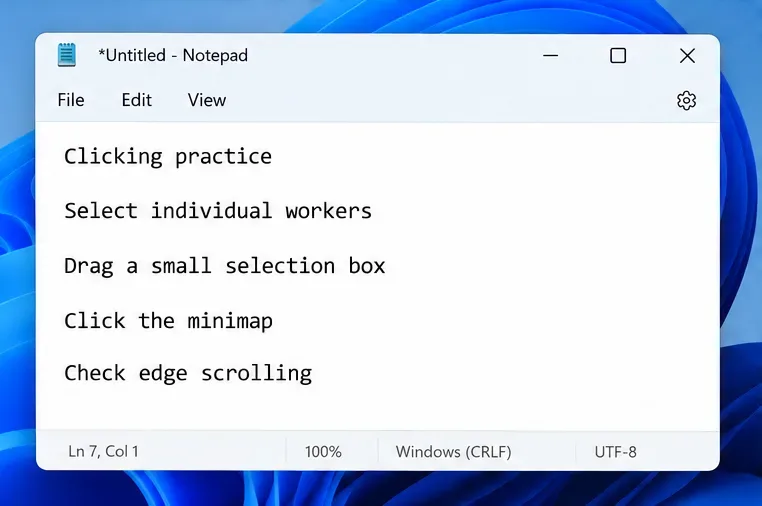
Start with a practical mouse-speed baseline for StarCraft: Remastered, then tune sensitivity for accurate unit selection, minimap clicks, and scrolling.
Troubleshoot Dota 2 stuck on Connecting to the Game Coordinator. Check for a service issue, restart Steam, test your network, and verify game files.
Find the best phone screen scale for Clash Royale card placement. Learn why default display settings are usually safest and how to test Android or iPhone adjustments.
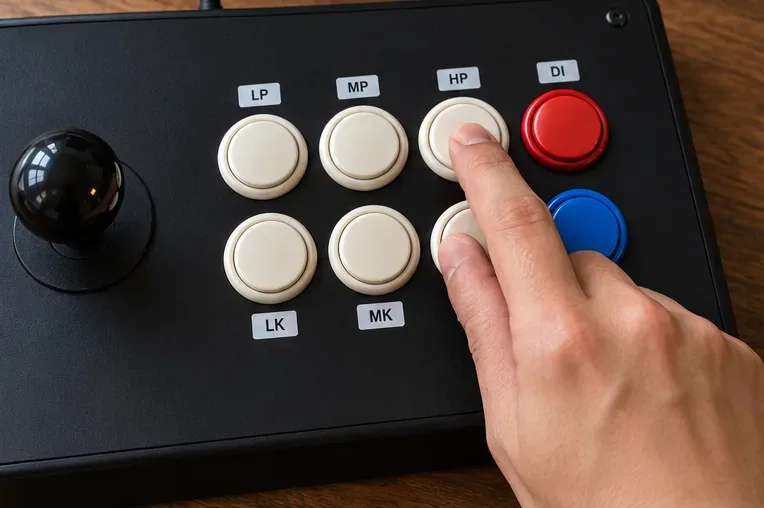
Set up a dedicated Drive Impact button on your SF6 arcade stick, check hand reach, fix missed inputs, and test your reactions with practical training drills.
Find a comfortable Honor of Kings camera panning sensitivity with a beginner-friendly baseline, role-based adjustments, and a simple in-game test.
Separate network lag from FPS stutter in Heroes of the Storm, then choose targeted fixes for ping spikes, Wi-Fi, PC performance, drivers, and game files.
Team Secret Whales face LYON in a Worlds 2026 Swiss Stage BO1. See the 7:00 p.m. CDT Oct. 23 start in Allen, equal to 00:00 UTC Oct. 24.
LOS and T1 meet in Worlds 2026 Swiss Round 1 on October 23. See the 23:00 UTC start, Allen local time, best-of-one format, lineup status, and official result page.