Best Audio Dynamic Range Setting for Headphones in Dota 2

Find the best Dota 2 headphone dynamic-range setup, learn when compression helps, and configure audio for clear cues without overly loud team fights.
For a beginner seeking precise clicks in StarCraft: Remastered, try 800 DPI with the game's existing mouse-sensitivity setting, then adjust the game setting gradually. DPI, short for dots per inch, describes the mouse's movement sensitivity: at a higher DPI, the mouse reports more movement for the same physical travel. The best final speed lets you select a small unit reliably while still reaching the minimap and screen edges comfortably.
800 DPI is a practical starting recommendation, not a Blizzard-approved optimum or a measured professional-player average. If you already click accurately at another speed, keep it as your baseline. A slower cursor is useful only if it reduces mistakes without making ordinary screen travel cumbersome.
Several controls can affect how a mouse feels, and their numbers describe different things. Understanding that distinction makes troubleshooting much easier.
| Setting | What it means | What to do first |
|---|---|---|
| Mouse DPI | The mouse's movement-reporting sensitivity. | Choose one stable setting, such as 800 DPI, using your mouse's supported controls. |
| Game mouse sensitivity | The game's adjustment to cursor movement. | Record the current value before trying a small change. |
| Windows pointer speed | The operating system's cursor-speed setting. | Keep it consistent while comparing game settings. |
| Mouse acceleration | Movement scaling that changes according to how quickly you move the mouse. | Keep the acceleration configuration fixed during a comparison. |
| Mouse scroll speed | How quickly the camera moves when you scroll the map. | Evaluate it separately from clicking accuracy. |
Razer's explanation of mouse DPI describes DPI as a sensitivity measurement. It does not establish an ideal StarCraft setting. A mouse advertised with a very high maximum DPI gives you adjustment range; that maximum is not automatically the best choice for selecting small targets.
Do not assume that multiplying DPI by an in-game percentage produces a reliable universal sensitivity number. A percentage slider need not be linear, and cursor behavior can depend on input handling and display configuration. This guide does not claim a verified conversion between StarCraft: Remastered's slider, Windows pointer speed, and physical mouse travel.
Use the same mouse, mouse pad, display resolution, and game window size throughout the comparison. Clear enough desk space to move comfortably and keep your usual grip. If your mouse supports selectable DPI stages, choose 800 DPI and avoid cycling between stages during a match. If its DPI is not adjustable, leave the hardware alone and tune the available game control instead.
Record the original game sensitivity and any relevant cursor or scaling options. Your notes do not need to be elaborate: mouse DPI, game sensitivity, display mode, and the date are enough to make a change reversible. Keep the original settings if 800 DPI immediately makes basic movement awkward; the recommendation is a starting point rather than a requirement.
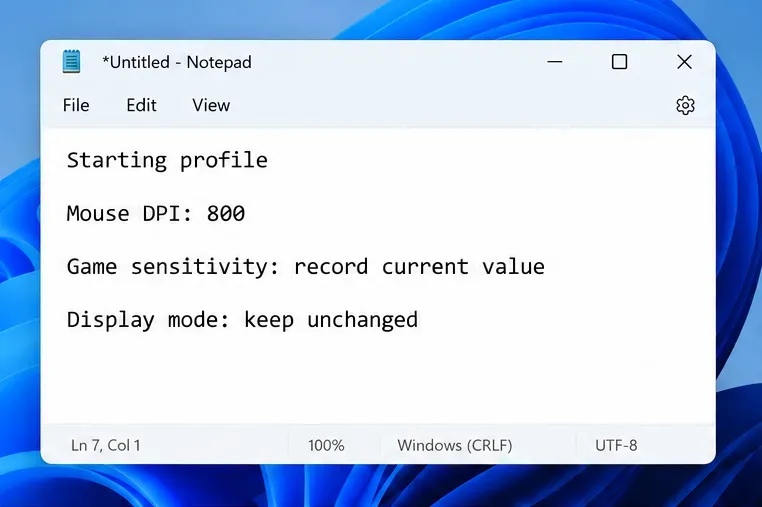
Screen travel is more relevant here than an FPS game's “centimeters per 360.” That shooter measurement describes the mouse distance needed to rotate a camera completely. StarCraft uses a cursor to select units and issue commands, so test travel between actual click targets instead.
For example, moving from workers near the center of the playfield to the minimap should feel comfortable. If that repeatedly requires lifting and repositioning the mouse, the overall speed may be too low for your workspace. If a small finger movement sends the cursor past a worker, it may be too high.
On Windows 11, open Settings, then Bluetooth & devices, then Mouse. The Mouse pointer speed control adjusts the desktop pointer. Additional mouse settings opens Mouse Properties, where the Pointer Options tab provides classic pointer controls. Microsoft's mouse-settings instructions document these controls; their placement can vary with Windows version.
For a comparison aimed at predictable movement, try turning Enhance pointer precision off and keeping it off throughout the test. Treat this as a test preference rather than a universal rule. Microsoft describes that feature as helping slow pointer movement, and some people prefer it for desktop work. Its name does not mean it guarantees better unit selection in a game.
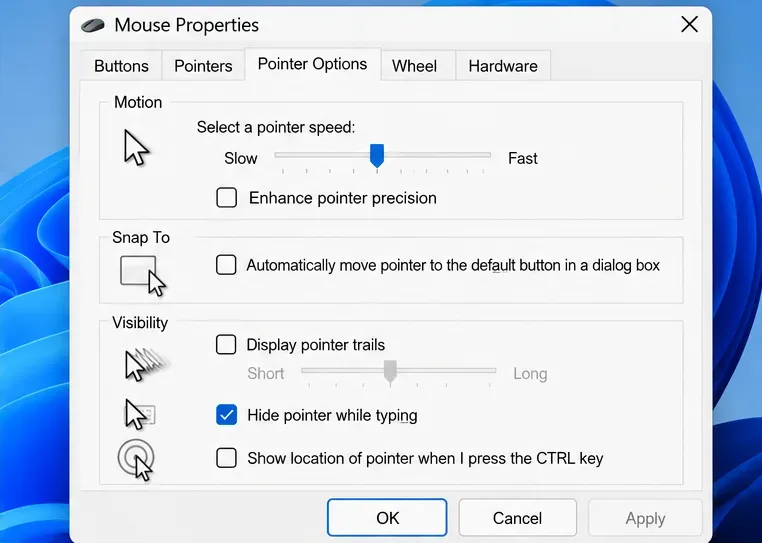
Microsoft's documentation on mouse-input handling distinguishes Windows-processed pointer movement from raw input, which provides mouse data more directly. Raw input is a method a game uses to receive movement; it is not another sensitivity number. Because applications can handle input differently, a Windows adjustment may not affect every game in the same way.
Check the result inside StarCraft instead of assuming desktop and game movement match. If Windows pointer changes have no noticeable in-game effect, stop using that slider as your game-tuning tool. Likewise, if your installed client offers hardware-cursor or mouse-scaling options, record their state and keep it fixed while changing sensitivity. This article does not prescribe an unverified combination of those options or claim that one guarantees lower latency.
Open StarCraft: Remastered's options and locate the mouse-sensitivity control in your installed client. Start from the value you recorded. Avoid following a StarCraft II menu path: it is a different game, and similarly named settings do not establish identical behavior. If the control is a slider without a readable number, note its position or take your own screenshot.
Use a low-pressure single-player or custom-game situation with familiar units. Run the same short sequence before and after a change:
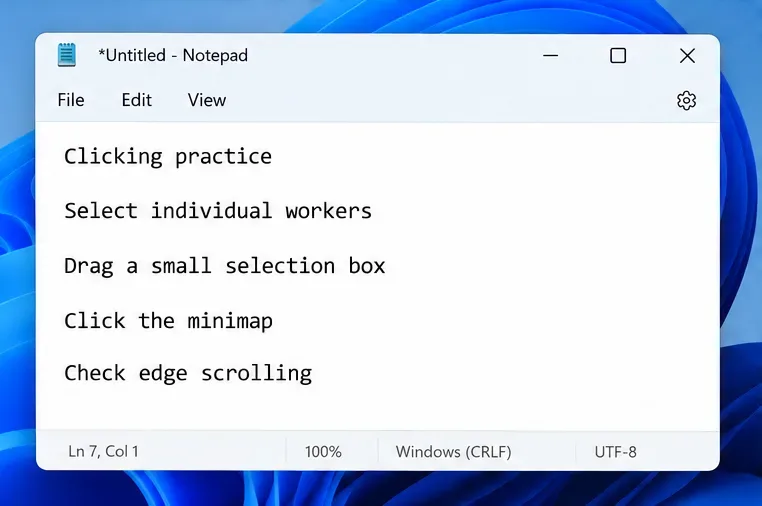
Move deliberately at first, then repeat at your normal playing pace. If you consistently overshoot, meaning the cursor passes the intended target, reduce game sensitivity by one small available increment. If you consistently undershoot, stopping short, or struggle to cross the screen, try a small increase. Change only one control, repeat the sequence, and compare with the original.
There is no need to force a particular percentage. A number such as 50% cannot describe your experience without knowing the mouse, display setup, and input behavior. The useful target is repeatable control over small selections and long cursor movements.
If the pointer lands accurately but the camera travels too far once you touch the screen edge, investigate mouse scroll speed rather than immediately lowering cursor sensitivity. Edge scrolling means moving the camera by placing the pointer near a screen boundary. Reducing pointer speed can make the boundary harder to reach without fixing an overly fast camera.
Blizzard's official patch 1.18 notes document windowed modes and in-game cursor clamping, which keeps the pointer within the game area. These historical notes provide context for window behavior, not a current sensitivity recommendation. Keep your display mode consistent when comparing settings.
Keep the more promising setting for a few practice sessions. Notice whether ordinary unit selections require fewer corrective movements, selection boxes include the right units, and minimap clicks feel controlled. Also check whether long movements remain comfortable. A setting that improves tiny clicks but makes every cross-screen movement exhausting is not a balanced result.
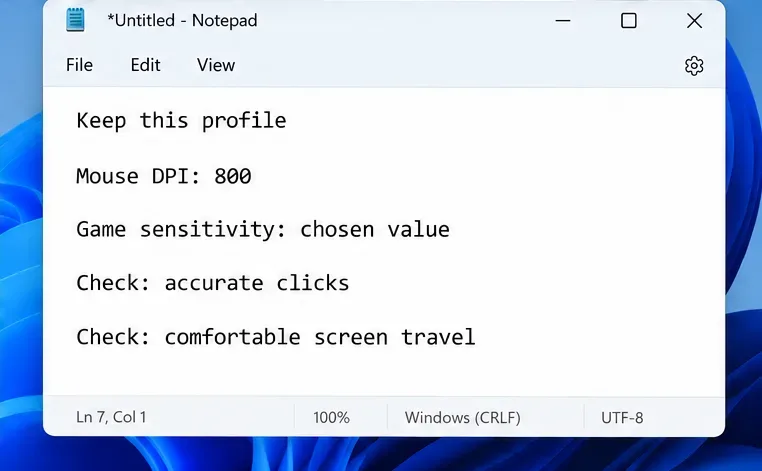
Save the chosen DPI and game setting in your notes. Relaunch the game and confirm they remain as intended, especially if mouse software switches profiles automatically. If performance becomes worse, restore the original profile and repeat the same practice sequence. Your notes make that comparison possible without guessing.
A meaningful improvement is fewer repeated selection errors at a comfortable pace. APM, or actions per minute, counts actions and is not a direct measure of click accuracy. Do not choose a faster setting merely because it encourages more clicks. Likewise, losing one match does not show that your sensitivity is wrong; positioning, decisions, and unfamiliar controls also affect the outcome.
Research for this guide was checked on October 8, 2026. No official optimal DPI, current slider conversion, or measured accuracy gain was verified. The recommended 800 DPI baseline and practice routine are practical guidance, not reported test results. The images show example notes and documented Windows controls, rather than captures of StarCraft performance testing.
Your final mouse speed should support the actions you repeat most: selecting the intended unit, drawing a controlled box, reaching the minimap, and returning to the playfield. Start with a stable profile, change one variable at a time, and keep the setting that makes those actions reliably comfortable.
Find the best Dota 2 headphone dynamic-range setup, learn when compression helps, and configure audio for clear cues without overly loud team fights.
Fix League of Legends critical errors on launch by checking overlays, repairing game files, updating drivers, and testing configuration and service conflicts.
Start with a practical mouse-speed baseline for StarCraft: Remastered, then tune sensitivity for accurate unit selection, minimap clicks, and scrolling.
Troubleshoot Dota 2 stuck on Connecting to the Game Coordinator. Check for a service issue, restart Steam, test your network, and verify game files.
Find the best phone screen scale for Clash Royale card placement. Learn why default display settings are usually safest and how to test Android or iPhone adjustments.
Set up a dedicated Drive Impact button on your SF6 arcade stick, check hand reach, fix missed inputs, and test your reactions with practical training drills.
Find a comfortable Honor of Kings camera panning sensitivity with a beginner-friendly baseline, role-based adjustments, and a simple in-game test.
Separate network lag from FPS stutter in Heroes of the Storm, then choose targeted fixes for ping spikes, Wi-Fi, PC performance, drivers, and game files.
Team Secret Whales face LYON in a Worlds 2026 Swiss Stage BO1. See the 7:00 p.m. CDT Oct. 23 start in Allen, equal to 00:00 UTC Oct. 24.
LOS and T1 meet in Worlds 2026 Swiss Round 1 on October 23. See the 23:00 UTC start, Allen local time, best-of-one format, lineup status, and official result page.